CyberSmarts for Seniors: Detailed Guide to Navigating Your Windows Computer & Getting Online
 Admin
Admin 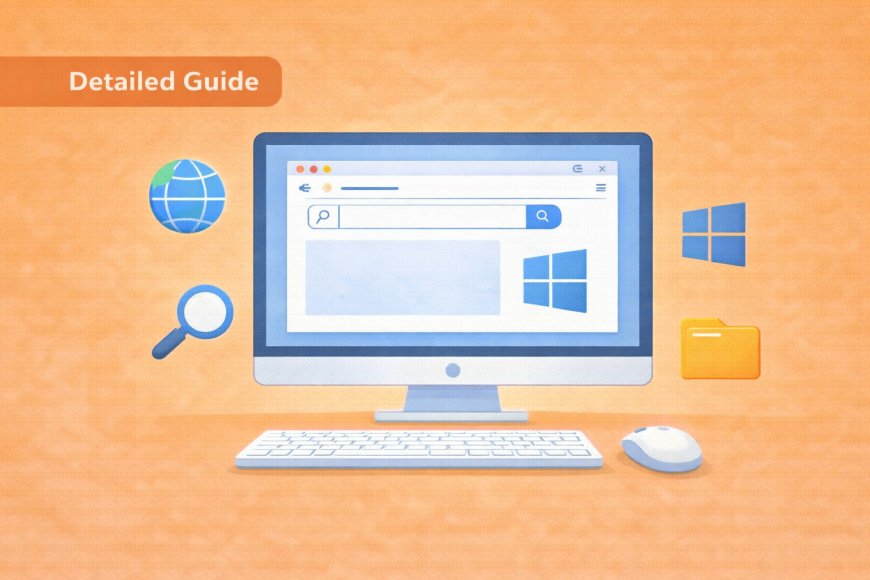
Every computer needs something to hold it all together behind the scenes, and that's exactly what Windows does for you. Windows is what is called an operating system (another popular operating system is macOS, used by Apple computers). An operating system is software that allows your device's hardware (screen, buttons, mouse, keyboard, speakers, etc) to function.
The good thing is that you don't need to understand how it all works technically. Just knowing what role it plays will help everything else make a lot more sense as you learn. Think of this section as a friendly introduction to your computer's "home base" before we explore the individual rooms.
(A quick guide with the key points from this resource can also be downloaded as a PDF so you can read it anytime, even if you are offline. Click here to download your copy.)
Part 1: Understanding Your Windows Computer
What is an Operating System?
Think of Windows as the manager of your computer; it helps everything work together, just like a building manager helps all the offices in a building work smoothly.

What you'll see:
-
The Windows logo appears often - it looks like four coloured squares
-
Windows helps you open programs, save files, and connect to the internet
-
It's like the foundation of your house - everything else is built on top of it
Mastering the Start Menu
The Start Menu is one of the first things you'll use every time you sit down at your computer, and the good news is it's simpler than it looks. Before we walk through the steps, it helps to know where to find it and what to expect when you open it. A little familiarity goes a long way here. After a few tries, opening the Start Menu will feel completely natural.
The Start Menu is your main control centre. Think of it like the lobby of a building where you can access everything.
Finding the Start Menu:
Location: Bottom left corner of your screen
What it looks like: The Windows logo (four coloured squares)
How to open it: Click once on the Windows logo
Step-by-Step: Using the Start Menu
-
Look at the bottom left corner of your screen
-
Find the Windows logo (it might be small, but it's there)
-
Click once on the Windows logo
-
Watch the menu appear - this shows all your available programs
-
Look around - you'll see a list of programs and apps
Two Ways to Find Programs:
When you want to do a specific thing on your device (such as draw or write a letter, or surf the Internet), you need software designed to help you carry out those actions. On mobile devices, these different types of software are called "apps." On computers, they are called "programs."
There's no single "right" way to find a program on your computer. Windows gives you options so you can use whichever feels most comfortable. Both methods below are easy to learn, and you may find you prefer one over the other once you've tried them. Don't worry about memorizing everything at once; with a little practice, it'll start to feel like second nature.
Method 1: Scroll and Look
-
Look through the list of programs that appears
-
Scroll down to see more programs
-
Click on any program name to open it
Method 2: Type to Search (Faster!)
-
After opening the Start Menu, just start typing
-
For example, type "notepad"
-
Watch as Windows finds the program for you
-
Click on it when it appears
Practice Activity:
-
Click the Start Menu
-
Type "notepad" (don't worry about capital letters)
-
When Notepad appears, click on it
-
Congratulations! You just opened your first program using search
Understanding Windows (The Boxes on Your Screen)
When you open a program, it appears in a window - think of it as a picture frame around your program.
The Three Important Buttons (Top Right Corner):
Every window on your screen has three small buttons in the top right corner, and understanding what they do will save you a lot of confusion. It's completely normal to accidentally click the wrong one at first — knowing what each button does means you'll always know how to recover. Think of them as simple controls for managing how your programs appear on screen.

Minimize Button (_):
-
What it looks like: A horizontal line
-
What it does: Hides the window (like putting a book face-down on your desk)
-
Important: The program is still running, just hidden
-
How to bring it back: Click the program's button on the taskbar
Maximize Button (□):
-
What it looks like: A square
-
What it does: Makes the window fill your whole screen
-
Like: Opening a book fully to read it better
-
To make it smaller again: Click the same button (it will look like two overlapping squares)
Close Button (X):
-
What it looks like: An X
-
What it does: Closes the program completely
-
Like: Putting a book back on the shelf
-
Be careful: This actually shuts down the program
Step-by-Step Window Practice:
-
Open Notepad (using Start Menu → type "notepad")
-
Find the three buttons in the top right corner
-
Practice Minimize: Click the _ button
-
Notice Notepad disappears but appears on the taskbar
-
Restore the window: Click the Notepad button on the taskbar
-
Practice Maximize: Click the □ button
-
Notice Notepad now fills the whole screen
-
Make it smaller: Click the □ button again (now it looks like overlapping squares)
-
Close Notepad: Click the X button
Working with Multiple Programs
Your computer can run several programs at once; it's like having multiple books open on your desk.
It might seem overwhelming at first, but your computer is perfectly happy running several programs at the same time, and so can you, with a little practice. Before we look at the steps, it's worth knowing that nothing will break if things get a bit cluttered on your screen. The options below will show you easy ways to stay organized and move between programs with confidence.
Opening Multiple Programs:
-
Open Notepad (Start Menu → type "notepad")
-
Keep Notepad open and go back to Start Menu
-
Type "calculator" and open Calculator
-
Notice: Calculator appears on top of Notepad - this is normal
Switching Between Programs:
Once you have more than one program open, you'll want a simple way to move between them without closing anything. There are a few different methods available, and you only need to learn whichever one feels most comfortable to you. Each option below is straightforward, so feel free to try them all and stick with your favourite.
Method 1: Click on the Windows
-
Click anywhere on a window to bring it to the front
-
Try clicking on different parts of Notepad, then Calculator
Method 2: Use the Taskbar
-
Look at the bottom of your screen (the taskbar)
-
You'll see buttons for both Notepad and Calculator
-
Click these buttons to switch between programs
Method 3: Alt + Tab (Advanced)
-
Hold down the Alt key
-
Press Tab while still holding Alt
-
See how this shows all your open programs
-
Keep pressing Tab (while holding Alt) to select different programs
-
Release both keys when you've selected the program you want

Managing Multiple Windows:
If your screen gets cluttered:
-
Close programs you're not using by clicking the X button
-
Try to keep only 2-3 programs open when you're learning
-
Use the taskbar to see what's open
-
Don't panic if you lose track - everything is still there
Understanding Files and Folders
Before jumping into the steps, it helps to picture your computer's storage the same way you might think about a physical filing cabinet in an office. Once that idea clicks, navigating your files will feel much less mysterious; you're really just moving from drawer to drawer. The steps below will guide you through it gently, one click at a time.

Think of your computer like a digital filing cabinet.
The Concept:
Folders = Filing cabinet drawers or manila folders Files = Individual papers inside those folders
Opening File Explorer:
-
Click the Start Menu
-
Type "file explorer" or look for a folder icon
-
Click to open File Explorer
Navigating Folders:
Start with Documents folder:
-
Look for "Documents" in the left side of File Explorer
-
Click once on Documents
-
See the contents appear on the right side
-
Double-click any folder to open it and see what's inside
Creating Your First File:
-
Right-click in an empty space inside a folder
-
Select "New" from the menu that appears
-
Choose "Text Document"
-
Type a name for your file (like "My First File")
-
Press Enter to save the name
Practice Activity: File and Folder Exploration
-
Open File Explorer
-
Click on Documents folder
-
Look at what's inside
-
Try opening any folder by double-clicking
-
Practice going back by clicking the back arrow
-
Create a new text document and name it "Practice File"
Part 2: Web Browser Basics and Getting Online
What is a Web Browser?
A web browser is the program you use to access everything on the internet, from news and recipes to video calls with family. You likely already have one installed on your computer without even knowing it. The options below are simply different brands of the same tool, much like how different companies all make perfectly good telephones.

A web browser is your window to the internet, like looking through a window in your house to see what's happening in the world outside.
Common Browsers You Might See:
Microsoft Edge: Blue "e" symbol (comes with Windows) Google Chrome: Colourful circle Mozilla Firefox: Orange fox All browsers do the same basic job - they let you visit websites
Finding Your Browser:
Before you can explore the internet, you need to locate your browser on your computer. The good news is that Windows makes it easy to find, and there are three reliable ways to get to it. Try the one that feels most natural to you.
-
Look for browser icons on your desktop (the main screen)
-
Look for browser icons on your taskbar (bottom of screen)
-
Use Start Menu and type "edge" or "browser"
Understanding Browser Parts
Knowing the key parts of your browser before you start will save you from feeling lost once you're online. Each element has a specific job, and together they give you full control over where you go and what you see. Familiarizing yourself with these parts now is like learning the dashboard of a new car before pulling out of the driveway.
When you open your browser, you'll see several important areas:
The Address Bar:
The address bar is the single most important part of your browser, because it's how you tell your computer which website to go to. Every website has its own unique address, and typing it here gets you there directly. You'll use this bar every single time you go online.
What it looks like: A long box at the top of the browser
What it does: This is where you type website addresses
Think of it like: Writing an address on an envelope to tell the mail carrier where to go
Navigation Buttons:
These three buttons let you move around the internet without losing your place or starting over from scratch. They work the same way in every browser, so learning them once means you're set for good. Think of them as the back, forward, and replay buttons on a TV remote.
Back Button (←): Goes to the previous page (like turning back a page in a book)
Forward Button (→): Goes forward if you've gone back
Refresh Button (↻): Reloads the current page (like asking someone to repeat what they said)
Tabs:
Tabs are one of the most useful features in any browser, letting you keep several websites open at once without losing any of them. You don't have to use them right away, but knowing they exist will save you frustration when you want to check two things or more at the same time. Each tab works completely independently, so switching between them won't affect anything you have open.
What they look like: Small rectangles at the top of the browser
What they do: Let you have multiple websites open at once
Think of it like: Having several magazines open on your table at the same time
Your First Website Visit
Typing a web address for the first time can create feelings of uncertainty, but the steps below make it straightforward.
CBC.ca is a great first destination because it's familiar, trustworthy, and always available. Read through the steps once before you start, so nothing catches you off guard.
Let's visit a safe, familiar Canadian website.
Step-by-Step: Visiting CBC.ca
-
Open your browser (click the browser icon)
-
Look for the address bar (the long box at the top)
-
Click inside the address bar - look for a blinking cursor
-
Type slowly: www.cbc.ca
-
w-w-w (pause) dot (pause) c-b-c (pause) dot (pause) c-a
-
Press Enter on your keyboard
-
Wait patiently - websites take time to load (like waiting for someone to answer the phone)
-
Celebrate! You just visited your first website
What You'll See Loading:
Watching a page load for the first time can be confusing if you don't know what to expect. These are all normal signs that your browser is working properly and retrieving the page for you. The only thing you need to do is wait.
-
A spinning circle or loading bar
-
The page gradually appearing
-
Sometimes images load after text
-
This is all normal - be patient
Common Typing Mistakes and Fixes:
Typing a web address correctly takes a bit of practice, and small errors are completely normal at first. The important thing to know is that a mistake won't cause any harm, and fixing one only takes a second. Accuracy matters more than speed here, so go slowly and don't be hard on yourself.
If you make a typing error:
-
Use the Backspace key to erase mistakes
-
Don't panic - just fix it and try again
-
Take your time - accuracy is more important than speed
Understanding Search with Google
Google Search is free, available any time, and can answer almost any question you type in plain, everyday language. You don't need to know special commands or technical terms. Typing a question the same way you'd ask a friend works perfectly well.
Google is like having a librarian who knows everything and can find information instantly.
Getting to Google:
Google is a website like any other, so you need to navigate to it before you can use it. These steps will get you there quickly, and after a few visits, your browser may even start suggesting it automatically. Once it loads, you'll recognize it immediately by its colourful logo and simple white search box.
-
Open a new tab by clicking the + button near the top of your browser
-
Click in the address bar
-
Type: www.google.ca
-
Press Enter
-
Wait for Google to load
How to Search:
Effective searching is less about finding the perfect words and more about being reasonably specific. Starting with simple, familiar topics lets you get comfortable with how results appear before moving on to more complex questions. The examples below are good low-pressure starting points.
-
Look for the search box (big white box in the middle)
-
Click inside the search box
-
Type what you're looking for (start simple):
-
"local weather"
-
"today's news"
-
"recipe for cookies"
-
Press Enter or click the "Google Search" button
-
Look at the results that appear

Understanding Search Results:
A page of Google results contains more than just website links, and knowing what you're looking at helps you find useful information faster. Not every result is equally helpful or neutral, so a quick scan before clicking saves time and avoids unwanted detours. The breakdown below covers everything you'll typically see on a results page.
AI Overview: An automatically generated summary meant to answer your question directly without requiring you to click anywhere (but not every query shows this)
Blue links: These are websites you can click to visit
Descriptions: Small text under each link explains what you'll find
Images: Sometimes pictures appear at the top
Ads: Some results are advertisements (usually marked as "Ad")
Clicking on Search Results:
-
Read the description first to see if it interests you
-
Click once on any blue link
-
Wait for the website to load
-
If you don't like the website, click the back button to return to Google
Safe Browsing Tips
The internet is genuinely useful, but it does contain content designed to mislead or take advantage of people who are unfamiliar with the warning signs. None of the situations below requires any technical knowledge to avoid. Recognizing a few common patterns is all it takes to stay safe.
Be Careful of Ads:
Advertisements on websites are designed to look appealing and sometimes even urgent, which can make them easy to mistake for helpful content. They are not dangerous to see, but clicking them often leads somewhere you didn't intend to go. When something feels like it's pushing you to click, that's a reliable reason to pause.
-
Ads often look like buttons or important messages
-
They take you to different websites (usually trying to sell something)
-
When in doubt, don't click

Trustworthy Websites:
Not all websites are created equal, and some are far more reliable than others for accurate, safe information. The categories listed here are a practical starting point for knowing where you can browse with confidence. When a website doesn't fit any of these descriptions, a little extra caution is worthwhile.
-
Canadian government sites (these usually end with ".gc.ca")
-
Major news organizations (CBC, CTV, Globe and Mail, Toronto Star)
-
Well-known companies
-
Your bank's official website
Red Flags - Don't Click:
Some online content is specifically designed to create a sense of urgency or excitement to get you to act before you think. The examples below are among the most common tactics used, and spotting even one of them is a good reason to close the page entirely. If something feels off, trust that instinct.
-
Pop-ups saying "You've won something!"
-
Requests for personal information (passwords, credit card numbers)
-
Websites that look suspicious or unprofessional
-
Anything that seems "too good to be true"

Practice Activities
Activity 1: Website Navigation Practice
-
Visit CBC.ca (type www.cbc.ca in address bar)
-
Look around the page - don't click anything yet, just explore with your eyes
-
Try clicking on "News" if you see it
-
Use the back button to return to the main page
-
Practice opening a new tab (click the + button)
-
In the new tab, go to Google.ca
Activity 2: Search Practice
-
Go to Google.ca
-
Search for "weather" followed by your city name
-
Click on a weather result
-
Look at the weather information
-
Use the back button to return to Google
-
Try searching for "local library" + your city name
-
Explore one of the results
Activity 3: Multiple Tabs Practice
-
Open Google.ca in one tab
-
Open CBC.ca in another tab
-
Practice switching between tabs by clicking on them
-
Close one tab by clicking the X on the tab (not the whole browser)
-
Open a new tab and visit a website of your choice
Part 3: Troubleshooting Common Issues
When Programs Don't Respond
If a program freezes (stops working):
-
Wait 30 seconds - sometimes programs just need time
-
Try clicking elsewhere and then back on the program
-
Close and reopen the program if it's still not working
-
Restart your computer if multiple programs are having issues
When Websites Won't Load
If a website doesn't appear:
-
Check your internet connection - try visiting a different website like Google.ca
-
Wait and try again - sometimes websites are temporarily down
-
Check your typing - make sure the web address is correct
-
Try refreshing the page (click the refresh button)
If You Get "Lost"
In File Explorer:
-
Click "Home" to go back to your main folders
-
Click the back arrow to go to the previous folder
-
Close File Explorer and start over if you're really confused
In Your Browser:
-
Click the Home button (house icon) if your browser has one
-
Go to a familiar website like Google.ca
-
Close the tab and open a new one for a fresh start
Getting Help
Built-in Help:
-
F1 key opens help in most programs
-
Right-click often shows helpful options
-
Start Menu has a "Help" option
Online Help:
-
Search Google for "how to [what you want to do]"
-
YouTube has many tutorial videos for seniors
-
Microsoft has official help pages
Part 4: Daily Practice Suggestions
Building Confidence Through Repetition
Daily Computer Practice (15-20 minutes):
Day 1-3: Master the Basics
-
Turn computer on and off
-
Practice opening and closing the Start Menu
-
Open Notepad, minimize it, restore it, close it
-
Open File Explorer and look at your Documents folder
Day 4-6: Add Web Browsing
-
Open your browser
-
Visit CBC.ca
-
Practice opening new tabs
-
Do a simple Google search for "weather"
Day 7+: Explore Safely
-
Visit websites from your search results
-
Practice switching between programs
-
Create and name a simple text file
-
Try searching for topics that interest you
Helpful Practice Ideas:
For Web Browsing:
-
Look up your local weather forecast
-
Search for a recipe you'd like to try
-
Find your local library's website
-
Look up local news
-
Search for information about your hobbies
For File Management:
-
Create folders for different topics (Photos, Documents, etc.)
-
Practice saving simple text files
-
Explore what folders are already on your computer
-
Learn to find files you've saved
Building Good Habits
Before You Start:
-
Make sure you're sitting comfortably
-
Clean your screen if it's dusty
-
Have your reading glasses handy
-
Keep a notebook nearby for questions
During Practice:
-
Go slowly - speed comes with time
-
Say steps out loud as you do them
-
Don't try to learn everything at once
-
Take breaks when you feel frustrated
After Practice:
-
Write down what you learned
-
Note any questions for later
-
Celebrate what you accomplished
-
Plan what to practice next time
Quick Reference Guide
Essential Keyboard Shortcuts:
Windows Key: Opens Start Menu
Alt + Tab: Switch between open programs
Windows + L: Lock your computer
Ctrl + C: Copy selected text/file
Ctrl + V: Paste copied text/file
F1: Open help in most programs
Essential Mouse Actions:
Single Click: Select something
Double Click: Open files or folders
Right Click: Show menu of options
Click and Drag: Move items around
Browser Shortcuts:
Ctrl + T: Open new tab
Ctrl + W: Close current tab
Ctrl + L: Jump to address bar
F5: Refresh/reload page
Ctrl + Plus (+): Make text larger
Ctrl + Minus (-): Make text smaller
When You Need More Help
Canadian Resources:
Local Libraries: Most offer free computer classes for seniors
Community Centres: Often have technology programs
Senior Centers: May have volunteer tech support
Computer retail stores: Sometimes offer computer help services
Online Canadian Resources:
CARP (Canadian Association of Retired Persons): Technology guides for seniors
Government of Canada Digital Literacy: Free online courses
CBC Technology News: Stay updated on technology trends
Family and Friends:
-
Ask family members to show you things slowly
-
Have them write down steps for you
-
Practice together during visits
-
Don't be afraid to ask the same questions multiple times
.
Return to the CyberSmarts for Seniors Introduction:
CyberSmarts for Seniors: Practical Lessons to Build Digital Confidence and Safety
.

This resource is part of the CyberSmarts for Seniors Project, funded in part by the Government of Canada’s
New Horizons for Seniors Program and ELNOS, and delivered in Elliot Lake by Raknas Inc. and Golden Voices, the seniors-focused division of the DiversityCanada Foundation.
.
Download PDF
How to download a quick guide with the key points of this article as a PDF:
—Click the File Name below (in blue).
— If your device is set up to download automatically, the file you just clicked will be saved where your downloaded items can be found (usually in your Downloads folder or Desktop).
—If your device is not set up to download automatically, a dialogue box should pop up.
—Click Save.
—According to your device settings, the file may now be saved where your downloaded items can be found (usually in your Downloads folder or Desktop).
—Alternatively, your device may show you a window, and you will have the chance to choose a location where you want to save the file. Choose a place that's easy to find, like Downloads, Documents, or Desktop.
—The PDF will be downloaded to your device.
—You can now open it anytime in the future, even without an Internet connection.