CyberSmarts for Seniors: Detailed Guide- Using Video Calling
 Admin
Admin 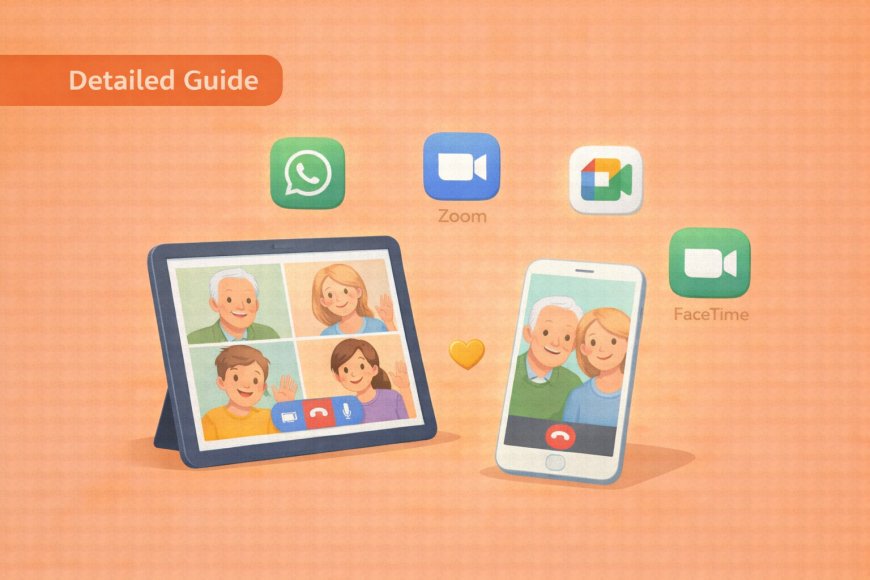
Video calling has become one of the most popular ways for families to stay connected across distances, and today's tools make it much more accessible than most people expect. You don't need any special equipment beyond the device you already own. The options below cover the most widely used services in Canada, so you can choose the one that fits your situation best.
(A quick guide with the key points from this resource can also be downloaded as a PDF so you can read it anytime, even if you are offline. Click here to download your copy.)
Part 1: Understanding Video Calling
What is Video Calling?
Video calling allows you to see and talk with people in real-time using your computer, tablet, or smartphone. Think of it as having a face-to-face conversation even when you're far apart. It's perfect for chatting with grandchildren in other provinces or catching up with old friends who may even be in other countries.
Popular Video Calling Services in Canada:
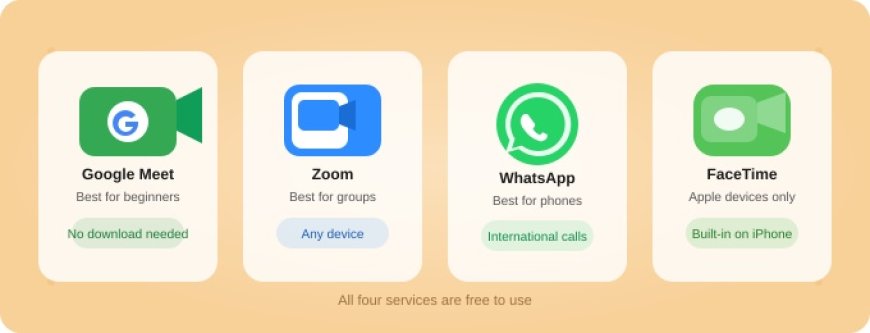
Each of the services below is free, reliable, and used by millions of people every day. The right choice largely depends on what device you have and who you most want to call. Reading through the options first will help you make a confident decision before setting anything up.
Google Meet
-
Best for: Beginners and people who already have Gmail
-
Why it's great: Works directly in your web browser - no download needed
-
Cost: Free for personal use
-
Works on: Any computer, smartphone, or tablet
Zoom
-
Best for: Group calls and people who want extra features
-
Why it's popular: Very reliable, good video quality
-
Cost: Free for calls up to 40 minutes with groups, unlimited for one-on-one calls
-
Works on: Any device, but you need to download the app
WhatsApp Video
-
Best for: Phone users and international calls
-
Why it's convenient: Most people already have it on their phones
-
Cost: Free (uses your data or Wi-Fi)
-
Works on: Any device, but most people use it on smartphones and tablets
FaceTime
-
Best for: People with Apple devices only
-
Why Apple users like it: Built into iPhones and iPads
-
Cost: Free
-
Works on: Only Apple devices (iPhone, iPad, Mac)
Part 2: Setting Up Video Calling
For Computer Users (Windows or Mac)
Setting up video calling on a computer is straightforward, and you only need to do it once. Google Meet is listed first because it requires no downloading or installation, making it the easiest starting point for most beginners. If someone you want to call regularly uses Zoom, the second option walks you through that setup as well.
Option 1: Google Meet (Recommended for Beginners)
Step-by-Step Setup:
-
Open your web browser (Chrome works best, but Firefox or Edge also work)
-
Type meet.google.com in the address bar and press Enter
-
Look at the simple page with two main options
If you already have a Gmail account:
-
Click "Sign In" in the top right corner
-
Enter your Gmail address and password
-
You're ready to start making video calls!
If you don't have a Gmail account (we'll create one):
-
Click "Create account"
-
Choose "For personal use"
-
Fill in your information:
-
First and last name
-
Choose a username (this becomes your new email address like: yourname55@gmail.com)
-
Create a strong password (mix of 8+ letters, numbers, and symbols)
-
Write down your password somewhere safe!
-
Enter your phone number for security
-
Check your phone for a verification code and enter it
-
Complete the setup following the prompts
Important: Google Meet works directly in your browser; no downloading required!
Option 2: Zoom (If You Want More Features)
Zoom is worth setting up if you plan to join group calls or if the people you want to connect with are already using it. Unlike Google Meet, it requires a one-time download, but the steps below are clear and manageable. Once it's installed, you'll find it just as easy to use as any other program on your computer.
Step-by-Step Setup:
-
Open your web browser
-
Type zoom.us in the address bar and press Enter
-
Click "Sign Up, It's Free" (usually in the top right corner)
-
Enter your email address
-
Create a strong password (write it down somewhere safe!)
-
Check your email for a verification message from Zoom
-
Click "Activate Account" in the email
-
Complete your profile with your name
Download the Zoom App:
-
Click "Download" from the Zoom website
-
Wait for the file to download (usually goes to your Downloads folder)
-
Find the downloaded file and double-click it
-
Follow the installation prompts (click "Next" when asked)
-
Look for the Zoom icon on your desktop when finished
For Smartphone Users
Setting Up on iPhone:
If you primarily use a phone rather than a computer, video calling is just as easy and possibly even more convenient. The steps below cover both iPhone and Android phones, so follow whichever set matches your device. Each app installs in just a few minutes and only needs to be set up once.
For Google Meet:
-
Find the App Store icon on your home screen (looks like an "A" made of blue sticks)
-
Tap the App Store icon
-
Tap the search icon (magnifying glass) at the bottom
-
Type "Google Meet" and tap "Search"
-
Look for the app with the colourful camera icon
-
Tap "GET" (you may need to use Face ID, fingerprint, or enter your Apple ID password)
-
Wait for download and installation
-
Tap the Google Meet icon to open it
-
Sign in with your Google account or create a new one
For WhatsApp Video (Very Popular Choice):
-
Open the App Store
-
Search for "WhatsApp Messenger"
-
Tap "GET" to download
-
Open WhatsApp after installation
-
Verify your phone number (WhatsApp will send you a code)
-
Allow access to your contacts when prompted
-
You're ready to make video calls!
Setting Up on Android Phone:
For Google Meet:
-
Find the Google Play Store icon (colourful triangle)
-
Tap to open it
-
Tap the search bar at the top
-
Type "Google Meet" and tap the search button
-
Look for the app with Google's logo
-
Tap "Install"
-
Wait for download and installation
-
Tap "Open" or find the app icon on your home screen
-
Sign in with your Google account
Essential Setup Tips for Best Results:
A little preparation before your first call should make the experience smoother for both you and the person you are calling. Most of these tips take only seconds to address and make a real difference in call quality. Running through this checklist once before you connect will set you up for a comfortable, clear conversation.
Before Your First Call:
-
Test everything first — make sure your camera and microphone work
-
Charge your device — keep your phone/tablet plugged in during calls
-
Check your internet — connect to strong Wi-Fi, or better, by Ethernet cable for the best quality
-
Position your camera at eye level for the most natural conversation
-
Check your lighting — sit facing a window or lamp so people can see your face clearly
-
Tidy your background — check what's visible behind you
Part 3: Making Your First Video Call
Using Google Meet on Your Computer
Google Meet keeps the process straightforward whether you are starting a call or joining one someone else has set up. The two situations, hosting and joining, involve slightly different steps, so both are covered separately below. If this is your first time, starting with a call to a patient family member is a good way to practice.
To Start a New Meeting (You're the Host):
-
Go to meet.google.com in your browser
-
Sign in with your Google account
-
Click the blue "New meeting" button
-
Choose "Start an instant meeting"
-
Allow camera and microphone access when your browser asks (this is safe and necessary)
-
You'll see yourself on screen; this is normal!
-
Click "Join now" to enter your meeting room
To Invite Others to Join You:
-
Look for "Copy joining info" button
-
Click it to copy the meeting link
-
Paste the link into an email, text message, or write it down
-
Send it to the person you want to talk with
Example invitation message: "Hi! I'd like to have a video chat with you today at 2:00 PM. Please click this link to join: [paste the link here]. The call should last about 30 minutes. If you have trouble joining, call me at [your phone number]. Looking forward to seeing you!"
To Join a Meeting Someone Else Started:
-
Click the meeting link they sent you in email or text, OR
-
Go to meet.google.com and click "Join a meeting"
-
Enter the meeting code (looks like "abc-defg-hij")
-
Click "Ask to join"
-
Wait for the host to let you in (they'll see a notification)
Using Google Meet on Your Phone
The Google Meet app on a phone works nearly identically to the computer version, just with taps instead of clicks. The steps are shorter because the app handles most of the setup automatically. Keep your phone plugged in during longer calls to preserve battery life.
To Start a New Meeting:
-
Open the Google Meet app
-
Tap "New meeting"
-
Choose "Start an instant meeting"
-
Allow camera and microphone access if prompted
-
Tap "Join"
-
To invite others, tap "Share" and choose how to send the link (text, email, etc.)
To Join a Meeting:
-
Tap the meeting link someone sent you, OR
-
Open Google Meet and tap "Join a meeting"
-
Enter the meeting code
-
Tap "Join"
Using WhatsApp Video (Phone Only)
WhatsApp is particularly popular for staying in touch with family members who live abroad, since it works over Wi-Fi and avoids long-distance charges entirely. It handles both one-on-one calls and small group calls, covered separately below. Both options start the same way, from within a contact's chat window.
For One-on-One Video Calls:
-
Open WhatsApp
-
Find the person you want to call in your chat list
-
Tap their name to open the conversation
-
Tap the video camera icon at the top right
-
Wait for them to answer
For Group Video Calls (Up to 8 People):
-
Open a group chat OR create a new group
-
Tap the video camera icon at the top
-
Select up to 7 other people to join
-
Tap "Start"
Using Zoom
Zoom is reliable for larger group calls and is widely used by community groups, faith communities, and family reunions. Like Google Meet, it handles both hosting and joining, and the controls look similar once you are inside a call. If someone sent you a meeting link, the joining steps below are all you need.
To Start a New Meeting:
-
Open the Zoom app (or go to zoom.us and sign in)
-
Click the orange "New Meeting" button
-
Turn on your camera and microphone if they're off
-
Click "Join with Computer Audio"
To Invite Others:
-
Click "Invite" at the bottom of the screen
-
Choose "Copy Invitation"
-
Paste into email or text message
To Join a Meeting:
-
Click the meeting link someone sent you, OR
-
Open Zoom and click "Join a Meeting"
-
Enter the 9-11 digit Meeting ID
-
Enter your name as you want others to see it
-
Click "Join"
-
Enter the meeting password if required
Part 4: During Your Video Call - Essential Controls
Important Buttons You Need to Know:
Every video calling platform uses the same four basic controls, and they appear in roughly the same place on screen regardless of which service you are using. Knowing what each button does before your first call means you won't be searching for them mid-conversation. These are the only controls you need to manage a call comfortably.

Mute/Unmute Button:
-
What it does: Turns your microphone on/off
-
When to use it: Mute yourself when you're not talking to reduce background noise
-
How to tell: Usually shows a microphone icon, with a line through it when muted
Camera On/Off Button:
-
What it does: Turns your video on/off
-
When to use it: If you need privacy or want to save internet bandwidth
-
How to tell: Usually shows a camera icon, with a line through it when off
End Call Button (❌ or phone icon):
-
What it does: Hangs up and leaves the video call
-
Usually: Red button, sometimes looks like a phone hanging up
-
Important: This completely ends your participation in the call
Chat/Message Button:
-
What it does: Lets you send text messages during the call
-
When it's useful: Sharing links, addresses, or communicating when audio isn't clear
Video Call Etiquette - Being a Great Conversation Partner:
A video call feels slightly different from an in-person conversation, mostly because of the small delay that occurs over the internet. A few simple habits make the experience more natural and enjoyable for everyone on the call. None of this needs to be memorized; it becomes instinctive after one or two calls.
Before Speaking:
-
Unmute yourself first
-
Look at the camera (not the screen) when you're talking for better eye contact
-
Wait for quiet moments to start speaking
During Conversation:
-
Speak clearly and a bit slower than usual
-
Take turns talking; don't interrupt (there's often a slight delay)
-
Use gestures and expressions; they show up well on video
-
If you need to step away, tell everyone, mute yourself, and turn off your camera
Being Considerate:
-
Mute when you're not talking - reduces background noise for everyone
-
Don't eat during the call unless it's a casual family chat
-
If someone is having technical trouble, be patient while they figure it out
Part 5: Safety and Security for Video Calls
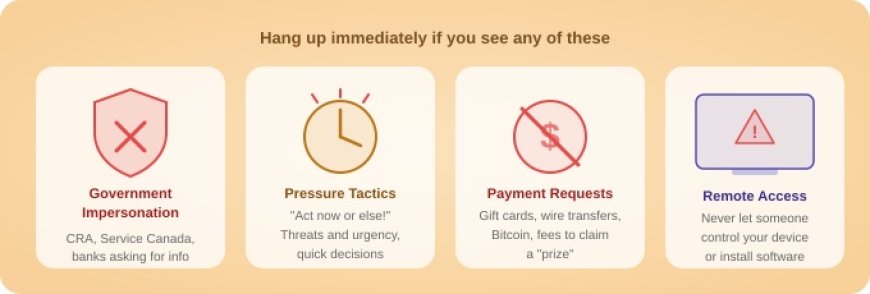
Video calls are generally very safe, but like any online activity, they come with a small number of risks worth knowing about in advance. The rules below take only seconds to apply and significantly reduce the chance of encountering any problems. Keeping these in mind is especially important before accepting calls from unfamiliar numbers or clicking links from people you don't know.
Golden Rules for Safe Video Calling:
- Only accept calls from people you know and trust
- Never join meetings from unknown numbers or suspicious emails
- Don't share meeting links publicly on social media
- Check your background for private information before calls
Before Accepting Any Call:
Check Your Environment:
-
What's visible behind you? Remove or cover anything private:
-
Family photos with addresses
-
Mail or bills with personal information
-
Valuable items that might attract thieves
-
Important documents or passwords
Verify the Caller:
-
Do you recognize the number or email?
-
Were you expecting this call?
-
Does the meeting invitation look legitimate?
During the Call - What to NEVER Share:
Personal Information You Should Never Give:
-
Social Insurance Number (SIN)
-
Banking information or account numbers
-
Credit card numbers or passwords
-
Full home address (unless with trusted family)
-
Date of birth or mother's maiden name
Financial Information:
-
Never make payments during video calls
-
Don't provide banking passwords
-
Don't give credit card information over video calls
-
Be suspicious of any urgent payment requests
Red Flag Warning Signs - Hang Up Immediately If:
Government/Authority Impersonation:
-
Someone claims to be from Canada Revenue Agency, asking for information
-
Someone says they're from Service Canada and need verification
-
Anyone claiming to be from your bank asking for account details
-
Someone pretending to be from utilities threatening to cut off service
Pressure Tactics:
-
Anyone who requests immediate payment or threatens consequences
-
Someone pressures you to make quick decisions
-
You receive offers that seem "too good to be true"
-
Anyone who asks you to keep the conversation secret
Technical Scams:
-
Someone offers technical support you didn't request
-
Anyone asks you to download software during the call
-
Someone wants you to click on links they send during the call
-
Anyone asking you to give them control of your computer
Financial Scams:
-
Requests to buy gift cards or prepaid cards
-
Asking you to send money transfers (Western Union, MoneyGram)
-
Someone claiming you've won money but need to pay fees first
-
Anyone asking for cryptocurrency or Bitcoin
Family Emergency Scams - Be Extra Careful:
The Scam: Someone pretends to be your grandchild or family member in trouble, asking for money urgently.
What to Do:
-
Hang up immediately
-
Call your family member directly using a phone number you already have
-
Verify the emergency with other family members
-
Never send money based on a video call request
What to Do If Something Feels Wrong:
Trust Your Instincts:
-
If something feels off, it probably is
-
Don't worry about being rude to potential scammers
-
It's better to be cautious than become a victim
Immediate Actions:
-
End the call immediately - click the red hang-up button
-
Don't call back the number
-
Tell a trusted family member or friend what happened
-
Report suspicious calls to the Canadian Anti-Fraud Centre: 1-888-495-8501
Privacy Settings and Best Practices:
Keeping your video calling accounts secure requires only a few one-time adjustments and a couple of ongoing habits. The Zoom-specific settings are listed first because that platform gives you the most control over who can join your calls. The general practices that follow apply to every service you use.
For Zoom Users:
-
Use waiting rooms when possible (lets you approve who joins)
-
Require passwords for meetings you host
-
Don't record meetings unless absolutely necessary
For All Video Calling:
-
Keep apps updated; install updates when prompted
-
Log out of apps when you're finished using them
-
Use strong, unique passwords for your video calling accounts
-
Don't save passwords on shared computers
Part 6: Troubleshooting Common Problems
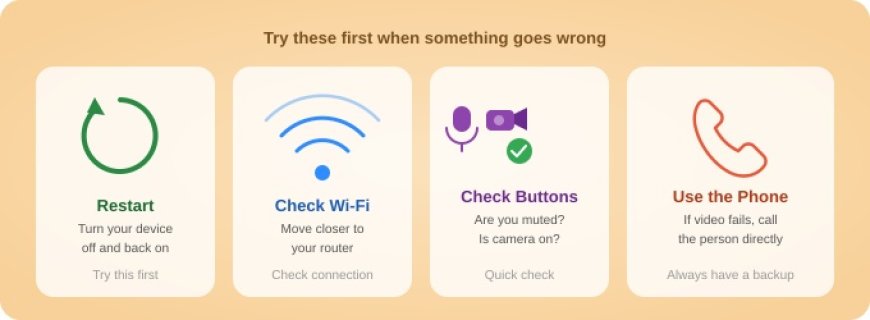
Even experienced video callers run into technical hiccups, and knowing what to do when something goes wrong is just as useful as knowing how to make a call in the first place. This section covers the most common problems and how to solve them, followed by tips for getting more out of your calls once the basics feel comfortable. Nothing here requires technical knowledge, just a willingness to try one step at a time.
"I Can't See the Other Person" or "My Video Isn't Working"
Step-by-Step Solutions:
-
Check if your camera is turned on
-
Look for the camera button (should NOT have a line through it)
-
Click it to turn your camera on
-
Improve your lighting
-
Sit near a window during daytime
-
Turn on a lamp behind your computer/phone
-
Avoid sitting with bright light behind you
-
Check camera permissions
-
Windows: Go to Settings → Privacy → Camera
-
Mac: Go to System Preferences → Security & Privacy → Camera
-
Phone: Check app permissions in Settings
-
Close other programs
-
Other apps might be using your camera
-
Close Skype, other video apps, or photo apps
-
Restart the video calling app
-
Close the app completely and reopen it
-
Try refreshing the web page if using a browser
-
Ask the other person to check their camera too
"I Can't Hear Anything" or "Others Can't Hear Me"
For Hearing Problems:
-
Check your device volume - turn it up using the volume buttons
-
Make sure you're not muted - the microphone button should NOT have a line through it
-
Try using headphones or earbuds - often gives clearer sound
-
Check your sound settings:
-
Windows: Right-click speaker icon → Sounds → check default device
-
Mac: System Preferences → Sound → check input/output devices
-
Ask others to speak louder or check their microphone
For Microphone Problems:
-
Check if you're muted - look for microphone button and unmute yourself
-
Check microphone permissions in your device settings (same as camera above)
-
Speak closer to your device - about arm's length is usually good
-
Try using headphones with a built-in microphone
-
Restart the app and test again
"The Video is Choppy, Frozen, or Keeps Cutting Out"
Internet Connection Solutions:
-
Check your Wi-Fi strength
-
Move closer to your Wi-Fi router
-
Ask others in your house to pause streaming videos during your call
-
Restart your internet router
-
Unplug your Wi-Fi router for 30 seconds
-
Plug it back in and wait 2-3 minutes for it to restart
-
Reduce the strain on your internet
-
Close other programs and browser tabs
-
Turn off your video and use audio-only
-
Ask others to stop using internet-heavy apps during your call
-
Try alternative connections
-
Use your phone's cellular data instead of Wi-Fi if it's stronger
-
Move to a location with better Wi-Fi signal
-
Call back and try again
-
Sometimes ending and restarting the call fixes connection issues
"I Can't Join the Meeting"
Step-by-Step Troubleshooting:
-
Double-check the meeting information
-
Make sure you copied the entire meeting link
-
Verify you have the correct meeting ID
-
Check that you have the right time and time zone
-
Try joining at different times
-
Join 5 minutes early to test your connection
-
If you're late, try joining anyway - the host might still be there
-
Update your app
-
Phone: Check App Store or Google Play for updates
-
Computer: Visit the website and download the latest version
-
Try alternative methods
-
If the app won't work, try joining from a web browser
-
If the web browser won't work, try the app
-
Contact the meeting host
-
Call or text them for help
-
They may need to resend the link or let you in manually
-
Have a backup plan
-
Keep the host's phone number handy
-
Be prepared to use regular phone call as backup
"The App Keeps Crashing or Won't Open"
Progressive Solutions:
-
Restart your device completely
-
Turn your computer/phone off and back on
-
Wait for everything to load before trying again
-
-
Update the app
-
Check app store for available updates
-
Install any pending system updates
-
-
Clear storage space
-
Delete old photos, videos, or unused apps
-
Video calling needs space to work properly
-
-
Reinstall the app
-
Delete the app completely
-
Download and install it fresh from the app store
-
-
Try the web browser version
-
Instead of the app, use meet.google.com or zoom.us in your browser
-
This often works when apps are having problems
-
Part 7: Advanced Tips and Features
Creating Perfect Meeting Invitations
Essential Elements to Include:
-
Clear date and time (include time zone if calling different provinces)
-
Expected duration ("about 30 minutes" or "1 hour maximum")
-
The meeting link or instructions
-
Your backup phone number
-
Personal touch that makes it warm and inviting
Sample Invitation Templates:
For Family: "Hi [name], I'd love to have a video chat this Sunday at 2:00 PM (Eastern Time). We could catch up and I can show you my new garden! The call should last about 45 minutes. Here's how to join: [meeting link]. If you have any trouble, call me at [phone number]. Looking forward to seeing your face! Love, [your name]"
For Friends: "Hello [name], would you like to have a video coffee chat Thursday at 10:00 AM? We could catch up properly and see each other's faces! Should take about an hour. Join here: [meeting link]. My phone number is [number] if you need help. Hope to see you then!"
For Multiple People: "Dear family, I'm hosting a family video call Saturday at 3:00 PM (Mountain Time) so we can all catch up together. Plan for about 1 hour. Please join using this link: [meeting link]. If anyone has technical trouble, call me at [phone number] and I'll help you join. Can't wait to see everyone!"
Managing Group Calls
As the Host:
-
Start the call 5 minutes early to work out any technical issues
-
Greet people as they join to make them feel welcome
-
Help with introductions if people don't know each other
-
Guide the conversation gently to include everyone
-
Manage muting - politely ask people to mute when not speaking
Participation Tips:
-
Raise your hand or say "I'd like to add something" to join conversations
-
Use names when responding to specific people
-
Be patient with technical difficulties - help each other
-
Take turns sharing updates or stories
Screen Sharing (Advanced Feature)
What it is: Showing your computer screen to others during the call
When it's useful: Showing photos, documents, or getting help with computer problems
How to do it: Look for "Share Screen" button during your call
Safety note: Only share your screen with trusted family and friends
Part 8: Building Confidence and Practice
Daily Practice Suggestions
Your First Video Call Practice:
Choose someone comfortable: Start with a patient family member or close friend
Keep it short: Aim for 10-15 minutes for your first try
Have backup support: Ask them to be patient and help you troubleshoot
Pick a good time: Choose when you're alert and not rushed
Progressive Skill Building:
Calls 1-3: Getting Comfortable
-
Focus on basic connection and conversation
-
Practice muting and unmuting
-
Get used to looking at the camera when speaking
-
Don't worry about advanced features
Calls 4-6: Building Skills
-
Try different people (family, friends)
-
Practice starting meetings yourself
-
Work on good lighting and camera angles
-
Experiment with different times of day
Calls 7+: Becoming Confident
-
Host group calls with multiple people
-
Help other family members learn to use video calling
-
Try different apps to see what you prefer
-
Share your screen to show photos or get help
Making Video Calling a Regular Habit
Weekly Family Calls:
-
Schedule regular times that work for everyone
-
Rotate who hosts so everyone learns
-
Create family traditions like virtual Sunday dinners
-
Include distant relatives who might feel left out
Special Occasion Calls:
-
Birthday celebrations where everyone sings happy birthday
-
Holiday greetings when you can't be together physically
-
Sharing special moments like graduations, new babies, achievements
-
Virtual tours of new homes, gardens, or vacation spots
Building Your Support Network:
-
Exchange contact information with other learners from classes
-
Create a buddy system for technical support
-
Practice calls with patient friends who can help you improve
-
Don't be afraid to ask for help - everyone wants you to succeed
Overcoming Common Concerns
"I Don't Look Good on Camera":
-
Remember: Family and friends love seeing your face regardless
-
Good lighting helps: Face a window or lamp
-
Camera angle matters: Position at eye level
-
Your smile is what matters most
"I'm Worried About Making Mistakes":
-
Everyone makes mistakes when learning - even teenagers!
-
Technology problems happen to people of all ages
-
Your family will be patient and help you learn
-
Every call gets easier
"I Don't Want to Bother People":
-
Most family members are delighted to video chat with you
-
You're giving them a gift by learning this technology
-
Start with people who have encouraged you to try video calling
-
Schedule calls in advance so people can prepare
Part 9: Canadian Resources and Getting Help
Technical Support Resources
Free Help Available:
-
Local libraries: Many offer free one-on-one computer help for seniors
-
Community centres: Often have technology classes and volunteer support
-
Senior centres: May have tech-savvy volunteers who can help
-
Computer Stores: Free workshops and support (in major Canadian cities)
Family Support Strategies:
-
Ask patient family members to teach you slowly
-
Have them write down steps for you to reference later
-
Practice together during visits
-
Don't feel embarrassed about asking the same questions multiple times
Online Canadian Resources:
-
CARP (Canadian Association of Retired Persons): Technology guides for seniors
-
Government of Canada Digital Literacy: Free online courses
-
Local library websites: Many have online tutorials and resources
When You Need Immediate Help
During a Video Call:
-
Don't panic if something goes wrong
-
Use the phone as backup; call the person you were video chatting with
-
Ask other participants for help if you're in a group call
-
End and restart the call if necessary
Technical Problems:
-
Write down error messages to share with helpful people
-
Take photos of error screens with another device if possible
-
Try the simple solutions first (restart, check connections)
-
Ask for help before getting frustrated
Security Concerns:
-
Canadian Anti-Fraud Centre: 1-888-495-8501
-
Report suspicious video calls to local police
-
Tell trusted family members about any concerning interactions
-
Your bank's fraud department if someone impersonated your bank
.
Return to the CyberSmarts for Seniors Introduction:
CyberSmarts for Seniors: Practical Lessons to Build Digital Confidence and Safety
.

This resource is part of the CyberSmarts for Seniors Project, funded in part by the Government of Canada’s
New Horizons for Seniors Program and ELNOS, and delivered in Elliot Lake by Raknas Inc. and Golden Voices, the seniors-focused division of the DiversityCanada Foundation.
.
Download PDF
How to download a quick guide with the key points of this article as a PDF:
—Click the File Name below (in blue).
— If your device is set up to download automatically, the file you just clicked will be saved where your downloaded items can be found (usually in your Downloads folder or Desktop).
—If your device is not set up to download automatically, a dialogue box should pop up.
—Click Save.
—According to your device settings, the file may now be saved where your downloaded items can be found (usually in your Downloads folder or Desktop).
—Alternatively, your device may show you a window, and you will have the chance to choose a location where you want to save the file. Choose a place that's easy to find, like Downloads, Documents, or Desktop.
—The PDF will be downloaded to your device.
—You can now open it anytime in the future, even without an Internet connection.