CyberSmarts for Seniors: Become Computer-Savvy (Video Lessons Intro)
The CyberSmarts for Seniors hub is designed to help seniors get more comfortable with electronic and internet-connected devices like computers, laptops, tablets, or cellphones.
 Admin
Admin 
Becoming computer-literate and internet-savvy has become more necessary than ever as many aspects of life are being shifted online.
Even seniors, the demographic that tends to be the least familiar with computers and the internet, should have some basic knowledge of operating computers and other similar devices.
This CyberSmarts for Seniors hub is designed to solve this problem and help seniors like you get more familiar and comfortable with newer technology, including internet-using devices like computers, laptops, tablets, or cellphones.
You can come back and reference this seven-part training video series at any time. (A French version of this series is available here.)
Here's a sneak peek at what you'll learn.
Basics of a desktop
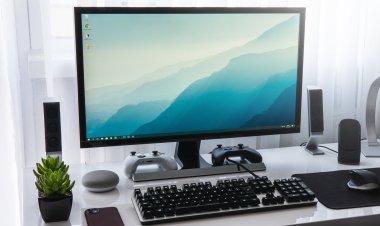
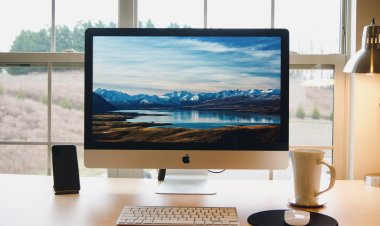
Desktop computers consist of 4 main components: the screen, tower, keyboard, and mouse. Sometimes, a computer will have a combined screen and tower.
The tower acts as the computer’s brain, as it contains the Central Processing Unit, or CPU, which does most of the work. The keyboard and mouse are used to give instructions and information to the CPU. The screen acts as the face of the computer, showing us the information we are sending the CPU and what information it’s sending us.
Read the full, in-depth Basics of a Desktop article here: www.goldenvoices.com/basics-of-a-desktop
Basics of a laptop
Laptops are condensed portable computers that share many aspects of a desktop computer. There are five main components of a laptop that you should know: the screen, keyboard, trackpad, mouse buttons, and webcam.
The trackpad is one of the significant differences between laptops and desktops. It acts as a laptop's mouse. Most laptops also have a built-in webcam found above the screen. They allow you to take photos and videos of yourself and join video calls on sites like Zoom, Teams, or Google Meet.
Read the full, in-depth Basics of a Laptop article here: www.goldenvoices.com/basics-of-a-laptop
Basics of a Chromebook
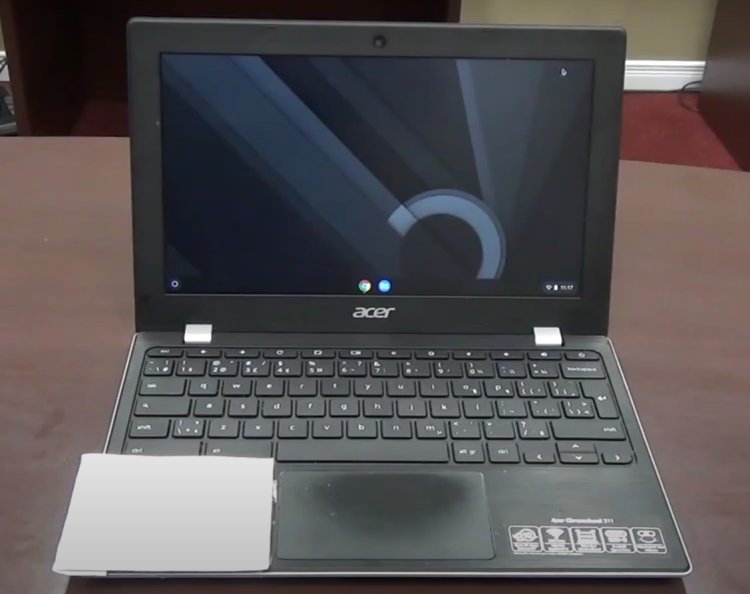
Chromebooks are a type of portable computer designed primarily for using the internet. They are very similar to laptops in design but are only designed for frequent, convenient, and quick access to the internet, unlike regular laptops and desktops.
Chromebooks are an excellent entry-level point into the world of computers, especially if most of your computer use will be online.
Read the full, in-depth Basics of a Chromebook article here: www.goldenvoices.com/basics-of-a-chromebook
Common computer accessories
The most common accessories you may encounter include webcams, printers, headphones, and flash drives. Many accessories require a USB connection, the most common way to connect accessories to your computer.
Printers are another standard accessory that allow you to print, scan, and fax documents from your computer. Headphones allow you to hear sounds and music from your computer and contain the sound to just your ears so you don’t disturb anyone around you. Flash drives are small, portable versions of the hard drive found in your tower.
Read the full, in-depth Common Computer Accessories article here: www.goldenvoices.com/common-computer-accessories
Using a computer
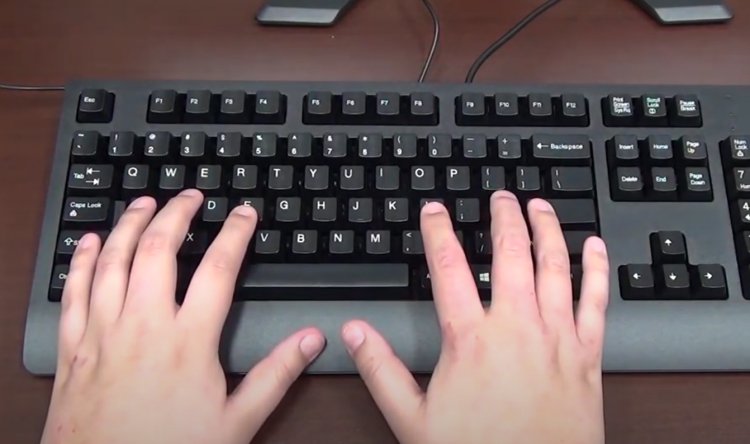
Now that you know all about the different types of computers and accessories, it’s time to learn how to use a computer, including learning how to use your mouse and keyboard.
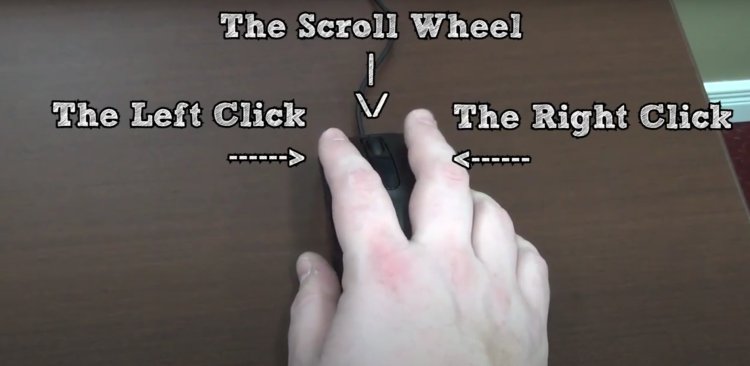
To use a mouse, use your index finger to select and manipulate items on the screen with the left-click button. Use your middle finger to bring up options and settings with the right-click button, and use either finger to operate the scroll wheel.
The essential keys on your keyboard include the space bar, the “shift” keys, the “enter” key, the “backspace” key, the “escape” key, the arrow keys, the function keys, the “control” and “alt” keys, and the numeric pad.
Read the full, in-depth Using a Computer article here: www.goldenvoices.com/using-a-computer
Navigating the Windows home screen
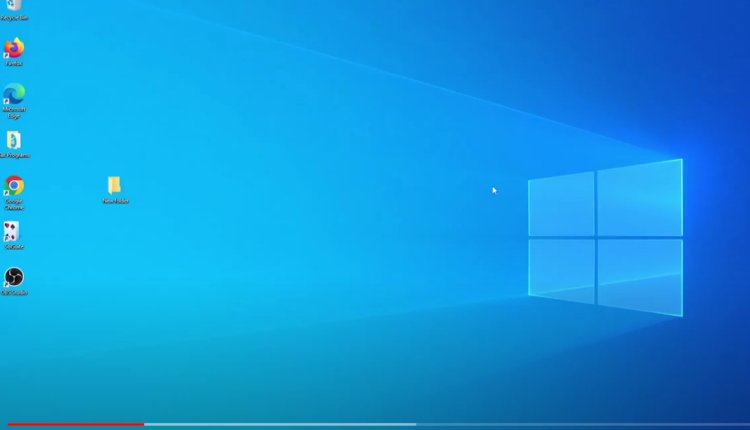
There are two main types of computers: Windows and Mac. The main features you should be aware of on a Windows computer include the desktop, the start button, the start menu, the taskbar, the system tray, the search bar, and the icons.
Read the full, in-depth Navigating the Windows Home Screen article here: www.goldenvoices.com/navigating-the-windows-home-screen
Navigating the Mac home screen
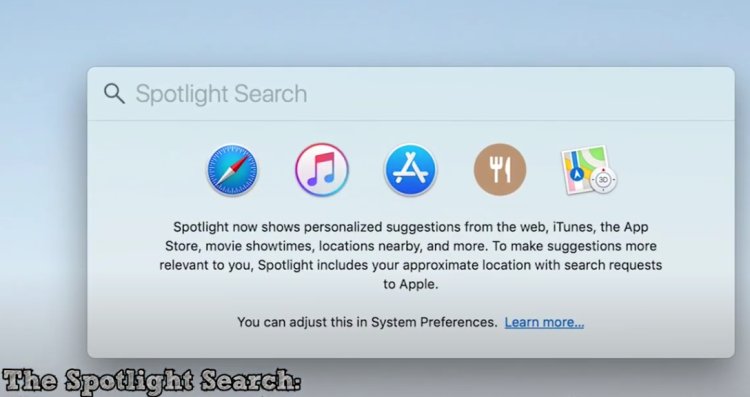
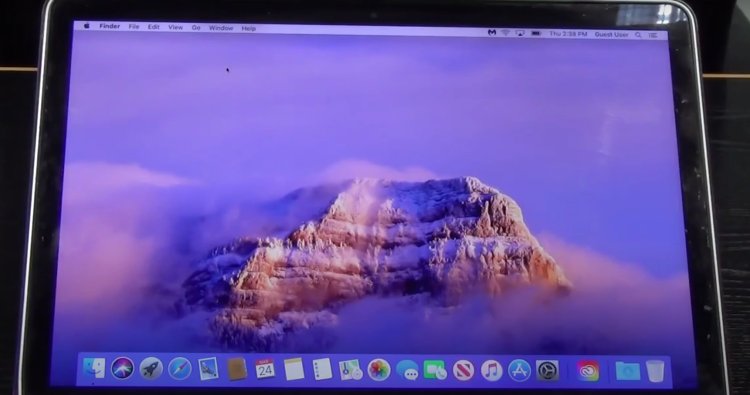
Macs are similar to Windows computers but use a different operating system and different home screen setup. The main features you should know on a Mac are the desktop, the dock, the menu bar, the Apple menu, the Spotlight search, and the icons.
Read the full, in-depth Navigating the Mac Home Screen article here: www.goldenvoices.com/navigating-the-mac-home-screen
Now that you know the basics of the most common types of computers and how to operate them, you can get started! If you face issues using a new computer, read the manual or ask a tech-savvy friend or family member for help. You could even review this article, the entire video series, or Google your problem on a different device.
The most exciting part is that you have an excellent foundation to now explore the wide range of articles and videos in this CyberSmarts for Seniors hub. You will learn more about how to use your devices and how to stay safe online.
.
Return to the CyberSmarts for Seniors Introduction:
CyberSmarts for Seniors: Practical Lessons to Build Digital Confidence and Safety
.

This resource is part of the CyberSmarts for Seniors Project, funded in part by the Government of Canada’s
New Horizons for Seniors Program and ELNOS, and delivered in Elliot Lake by Raknas Inc. and Golden Voices, the seniors-focused division of the DiversityCanada Foundation.
,
,