CyberSmarts for Seniors: Basics of a Desktop (Video 1)
Learn the essential components of desktop computers, including the screen, tower, keyboard, mouse, and speakers.
 Admin
Admin 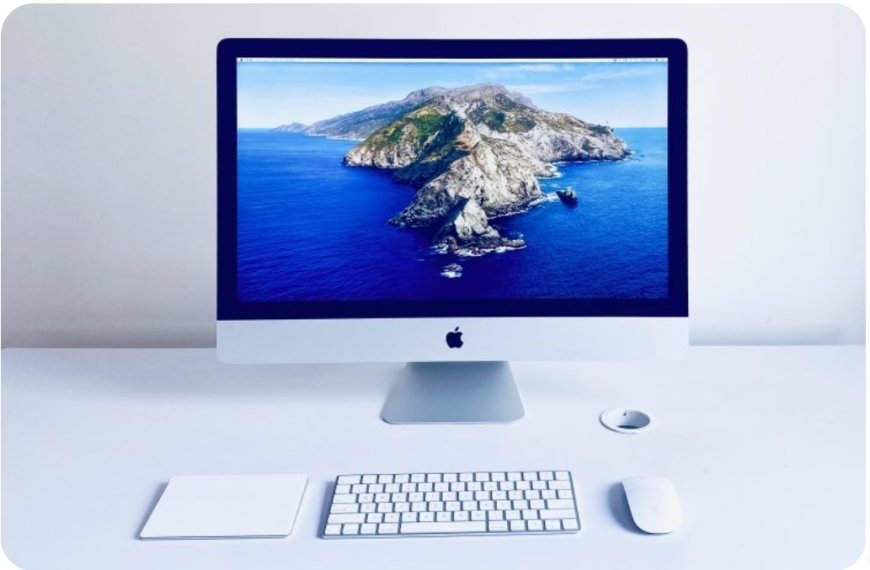
In this video, we will be looking at the basics of desktop computers. You're likely to have heard of two different types of computers called Windows and Mac computers. We’ll be looking at both in this lesson.
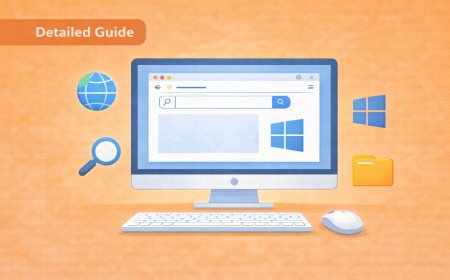
Most desktop computers consist of four main components: The screen, the tower, the keyboard, and the mouse.
The tower acts as the computer's brain and is the most crucial part. It contains the CPU, which is short for “central processing unit.” It is the part of the computer that actually ‘computes’ and does most of the work.
The other computer parts are what you use to interact with the CPU. The keyboard and mouse are what we use to give instructions or information to the CPU. The screen allows us to see what instructions or information we are sending to the CPU and what information it’s giving back to us.
The screen, or monitor, acts as the face of the computer. It is what you can look at to read and identify everything going on with your computer. Everything the CPU processes appears on the screen. Some desktop setups, such as Apple iMacs, combine the tower and the screen into one unit. These are called all-in-one units.
Below the screen, you’ll find the keyboard. The keyboard is one of the two main ways of navigating the computer. The keyboard is used for inputting text and numbers and controlling certain aspects of the computer.
The mouse is the last component we’ll look at. The mouse is the other primary way of navigating the computer and is the one you’ll likely use the most.
The mouse acts as the digital version of your hand. You use it to point at and select various items that you will see on your computer screen. You also use it to move things around on the computer screen, including performing actions called dragging, dropping, and scrolling.
A typical mouse will have three parts. One is a button on the left, the other is a button on the right, and the third is a part that spins, called a scroll wheel.
To use a mouse, you place your index on the left button and press down. This action is called a left-click. To do certain things, you put your middle finger on the right button and press down, and this action is called a right-click.
Most people control the scroll wheel with their index finger; some use their middle finger. There’s no right or wrong here. To scroll, run your finger backward or forwards on the scroll wheel.
The left-click acts as your primary method of selecting things. After clicking and selecting something, you can do many things to it, such as dragging it around the screen or opening it.
The right-click acts as a secondary input. Usually, you will use it to bring up options or settings for whatever you clicked on.
As the name implies, the scroll wheel allows you to scroll up or down a page and view all of its contents. Most computer mice have a physical scroll wheel. However, some mice, including ones made by Apple, do not. Instead, you scroll by swiping your finger where a scroll wheel would typically be.
One other component you may encounter with a desktop computer are speakers. Speakers allow you to hear sounds from your computer, like a Youtube video or a song file. Some computers have the speakers built into the screen or tower, while others have the speakers as separate boxes that you can place and adjust to your liking.
You are now familiar with the basic parts of the desktop computer. In our next lesson, we’ll look at another type of computer called a laptop.
This is Part 1 of a 7-Part series. You will get the most benefit out of this series if you watch the videos in order.
Part 3 - Basics of a Chromebook
Part 4 - Common Computer Accessories
Part 6 - Navigating the Windows Homescreen
Part 7 - Navigating the Mac Homescreen
.
Return to the Introduction to the Computer Basics Video Lessons:
Become Computer-Savvy (Video Lessons Intro)
.
Return to the CyberSmarts for Seniors Introduction:
CyberSmarts for Seniors: Practical Lessons to Build Digital Confidence and Safety
.

This resource is part of the CyberSmarts for Seniors Project, funded in part by the Government of Canada’s
New Horizons for Seniors Program and ELNOS, and delivered in Elliot Lake by Raknas Inc. and Golden Voices, the seniors-focused division of the DiversityCanada Foundation.
,
,