CyberSmarts for Seniors: Basics of a Laptop (Video 2)
Learn the essential components of a laptop computer, including the screen, keyboard, trackpad, mouse buttons, and webcam.
 Admin
Admin 
Let’s look at the basics of a laptop. Laptops are condensed portable computers, so they share many aspects of a desktop setup. We’ll look at the screen, keyboard, trackpad, mouse buttons, and webcam.
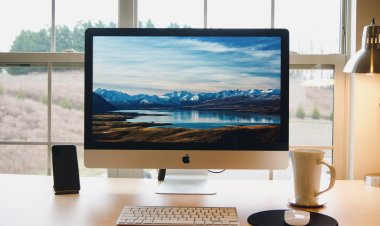
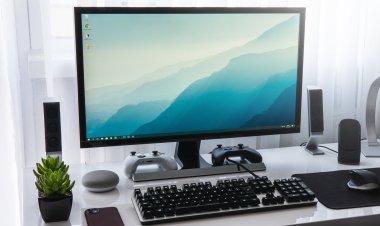
The screen, or monitor, is pretty much the same as a desktop computer. It allows you to read and identify everything going on with your computer.
Laptop screens are hinged, allowing you to adjust the angle of the screen to your liking. Some laptops have a touchscreen, enabling you to forgo the mouse and use your finger to point, select, drag, and drop items.
A laptop's keyboard is also similar to a desktop’s. It allows you to input text and numbers and control certain aspects of the computer. Because laptops are meant to be portable, the keyboard is usually condensed and doesn’t have every button a desktop keyboard may have, such as a numeric pad.
The trackpad is the first significant difference between a laptop and desktop setup. It acts as the mouse for a laptop. However, instead of using your hand to move it around like a mouse, you use your finger to swipe across or tap the trackpad to manipulate what you see on the screen. This action is similar to what you would do on a tablet or smartphone.
Instead of a scroll wheel, the trackpad is used for scrolling with either a dedicated scrolling area or by using two fingers to make a ‘scrolling’ gesture.
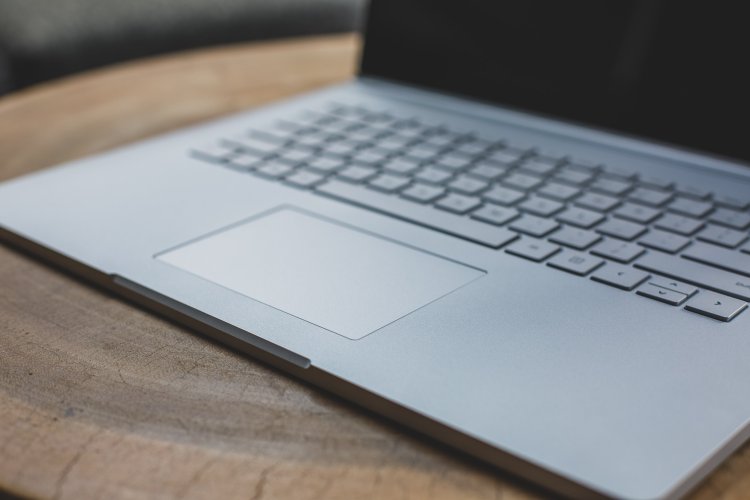
Below the trackpad, you’ll find the mouse buttons. They hold the same function as the left- and right-click buttons on a mouse, allowing you to click on various items.
On some laptops, the mouse buttons are separate buttons found below the trackpad. However, on others, such as this Apple Macbook, the mouse buttons are integrated with the trackpad and simply use the bottom left and bottom right corners as mouse buttons.
The webcam is the last part of the laptop we’ll look at. Most modern laptops have a built-in webcam found just above the screen. Webcams allow you to take photos and videos of yourself using the computer and have video calls using a service like Zoom or FaceTime.
Laptops with webcams usually have a built-in microphone located above or below the screen, allowing you to record your voice. Some laptops may also have a built-in cover for the webcam when not in use. It is generally recommended that you keep that webcam covered when not in use so hackers or unscrupulous parties cannot spy on you without your knowledge.
You are now familiar with the basic parts of a laptop computer. In our next lesson, we’ll look at another type of laptop called a Chromebook.
This is Part 2 of a 7-Part series. You will get the most benefit out of this series if you watch the videos in order.
Part 3 - Basics of a Chromebook
Part 4 - Common Computer Accessories
Part 6 - Navigating the Windows Homescreen
Part 7 - Navigating the Mac Homescreen
.
Return to the Introduction to the Computer Basics Video Lessons:
Become Computer-Savvy (Video Lessons Intro)
.
Return to the CyberSmarts for Seniors Introduction:
CyberSmarts for Seniors: Practical Lessons to Build Digital Confidence and Safety

This resource is part of the CyberSmarts for Seniors Project, funded in part by the Government of Canada’s
New Horizons for Seniors Program and ELNOS, and delivered in Elliot Lake by Raknas Inc. and Golden Voices, the seniors-focused division of the DiversityCanada Foundation.
,
,