CyberSmarts for Seniors: Detailed Guide to Smart Searching & Safe Browsing
 Admin
Admin 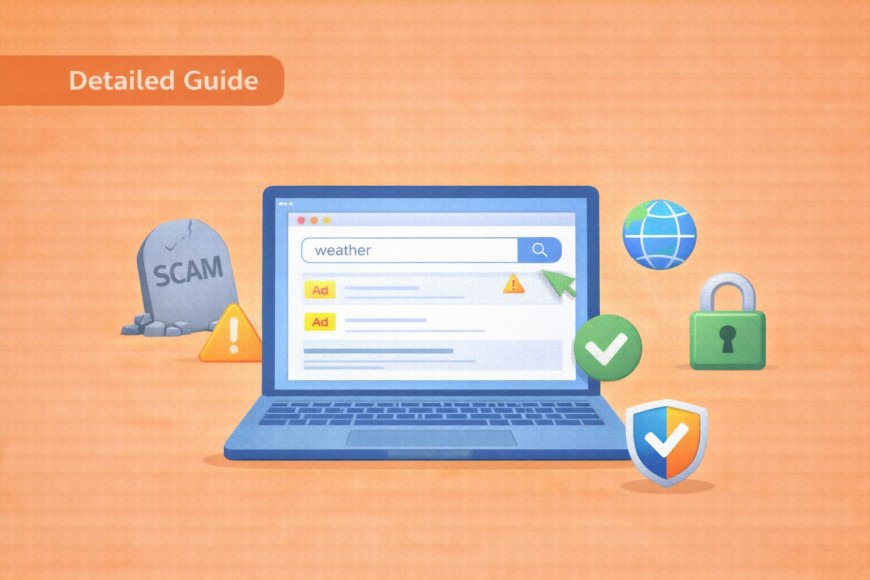
When you're online, you want to have fun and explore the exciting world that the internet opens up to you. To ensure a good experience, let us now explore how to search effectively, how to recognize what you are looking at in your results, and how to make smarter decisions about the websites you visit. Just as important, we will briefly cover how to protect yourself from the tactics that scammers use to target people online, so you can browse with genuine confidence rather than anxiety.
(A quick guide with the key points from this resource can also be downloaded as a PDF so you can read it anytime, even if you are offline. Click here to download your copy.)
Part 1: Mastering Google Search
Understanding How Search Works
Think of Google like talking to a very smart librarian who knows about everything in the world. The clearer you are about what you want, the better help you'll get.

The Power of the Right Words
The words you choose in a search make a significant difference in the quality of results you get back. Google works best when you give it enough context to understand what you actually need. The examples below show how small changes to your search terms produce far more useful results.
Keep it simple: Start with 2-3 main words that describe what you want
Be specific: Give Google enough information to understand your exact needs
Common Search Mistakes vs. Better Approaches:
Most people start out searching the way they might phrase a question out loud, which often produces results that are too broad to be useful. Adding just one or two extra words narrows things down considerably. The comparisons below cover the searches seniors most commonly need.
Instead of: "weather"
Try: "Elliot Lake weather today" or "[city] weather today"
Why it's better: Google knows exactly where you are and when you want the weather
Instead of: "doctor"
Try: "family doctor [in Elliot Lake]" or "walk-in clinic near me"
Why it's better: You get local results you can actually visit
Instead of: "recipe"
Try: "easy chicken soup recipe" or "30 minute dinner recipes"
Why it's better: You get recipes that match your skill level and time
Instead of: "news"
Try: "CBC news today" or "[city] local news"
Why it's better: You get current, relevant news from trusted sources
Step-by-Step Search Practice:
-
Open Google.ca (the Canadian version)
-
Click in the search box (the large white box in the middle)
-
Type your search terms (start with something simple like "library hours [your city]")
-
Press Enter or click the "Google Search" button
-
Look at the results that appear
Google's Hidden Helpers
Google has several built-in features that make searching easier and more accurate:
Search Suggestions
Google starts working before you even finish typing, offering suggestions based on what millions of other people have searched for. These suggestions are often more precisely worded than what you had in mind, and clicking one saves you the trouble of finishing your query. The microphone and suggestion features described below are particularly helpful if typing feels slow or uncertain.
What they are: As you type, Google shows a dropdown list of suggested searches
How to use them:
-
Start typing "how to..."
-
Look at the suggestions that appear
-
Often these suggestions are better than what you originally thought to search for
-
Click on any suggestion to search for it
Example Practice:
-
Type "how to" and stop
-
Look at the suggestions
-
Try clicking on one that interests you
"Did You Mean?" Feature
What it does: If you misspell something, Google suggests the correct spelling
Why it's helpful: You don't need to be a perfect typist to find what you want
Practice Activity:
-
Intentionally misspell "recipe" as "recipie"
-
Notice how Google asks "Did you mean: recipe"
-
Click on Google's suggestion
Voice Search
Voice search is a practical option any time typing feels slow or cumbersome. Speaking naturally works well here since Google is designed to understand conversational phrasing. These steps walk you through using it for the first time.
What it is: You can speak your search instead of typing
How to find it: Look for the microphone icon in the search box
When it's helpful: If typing is difficult, or for long searches

How to Use Voice Search:
-
Click the microphone icon in the search box
-
Wait for the prompt (you might see "Speak now")
-
Speak clearly: Say something like "weather at Toronto airport"
-
Wait for results to appear
Advanced Search Techniques
The three techniques below give you much more control over your results without requiring any technical knowledge. Each one solves a specific problem you are likely to run into regularly. You don't need to use all three, but knowing they exist means you're never stuck with a page full of unhelpful results.
These professional tricks will make you look like a computer expert:
Using Quotes for Exact Phrases
When to use it: When you want Google to search for words in exactly that order
How to do it: Put quotation marks around your phrase
Example: "chicken soup recipe" (with the quotes)
Why it works: Google will only show results with those exact words together

Searching Specific Websites
When to use it: When you want search results from only one specific website
How to do it: Type "site:" followed by the website, then your search terms
Example: "site:cbc.ca elliot lake council decision" searches only CBC's website for news about recent Elliot Lake Council decisions
Why it's useful: You get results only from sources you trust
Excluding Unwanted Results
When to use it: When your search brings up things you don't want
How to do it: Put a minus sign (-) before words you want to exclude
Example: "apple -fruit" if you want information about Apple computers, not the fruit
Why it helps: Removes confusing or irrelevant results

Practice Exercise: Advanced Searching
-
Search for news about a specific city using: "site:cbc.ca [city name]"
-
Search for an exact phrase: "easy dinner recipes for seniors" (with quotes)
-
Search for computer help but exclude gaming: "computer help -gaming"
Part 2: Recognizing and Avoiding Ads
Why Understanding Ads Matters
Important to know: Google shows advertisements first, but they're not always the best or safest choice for you.
Key concept: Companies pay Google to show their ads first - they're not there because they're the best answer to your question.
How to Spot Ads
Google's advertising results are designed to blend in with regular search results, which makes them easy to mistake for unbiased information. Learning to identify them takes only a moment once you know what to look for. The visual clues below are consistent across most searches.

Visual Clues to Look For:
"Ad" or "Sponsored" labels: These appear near the top of search results, usually in small text
Usually in a box: Ads often have a light border or different background colour
First 2-4 results: The top results are very often ads
Shopping ads: Product images with prices on the right side are always ads
Step-by-Step Ad Detection:
The best way to get comfortable identifying ads is to search for something and walk through the results deliberately. Choosing a category like insurance or home services works well because these searches tend to produce several ads at the top. Follow the steps below and take your time observing what you find.
-
Do a search for something like "home insurance" or "computer repair [your city]"
-
Look at the very top results
-
Find the small "Ad" labels; they're usually gray text near the web address
-
Count how many ads appear before you see regular results
-
Scroll down to find the non-ad results (usually starting around result 3 or 4)
Why This Matters for Your Safety:
Understanding that ads are paid placements rather than trusted recommendations changes how you interpret search results. This is especially important in certain categories where scammers are known to buy ads specifically to target people who are searching for help. The points below explain the risk clearly.
Scammers buy ads: Bad actors often purchase ads to look legitimate and trustworthy
Ads aren't quality-checked: Google doesn't verify that advertisers are honest
Local scams: Fake local services (like computer repair or contractors) often buy ads
What to Do About Ads
Don't panic if you click an ad: In most cases, it won't hurt your computer, you'll just visit their website
Scroll past the ads: Look for results without "Ad" labels for more unbiased information
Compare multiple sources: Never make decisions based on just the first result
Check the website name: Make sure it's a reputable company you recognize

Practice Activity: Ad Recognition
-
Search for "computer repair [your city]"
-
Identify which results are ads
-
Scroll down to find the non-ad results
-
Compare the difference between ad results and regular results
Part 3: Evaluating Website Trustworthiness
The Padlock Icon - Your Best Friend Online
The padlock icon is the single quickest way to check whether a website is safe to use before entering any personal information. It appears in the same location across all major browsers, so once you know where to look, checking takes only a second. The steps below show you exactly what to look for and what it means.
The padlock icon is like a safety seal on a medicine bottle; it tells you the website is genuine and follows accepted security practices.
Finding and Understanding the Padlock:
Where to look: In your browser's address bar, usually to the left of the web address
What it means: The website is secure and encrypted
Why it matters: Your information travels safely between you and the website
How to Check Website Security:
-
Visit a website (try your bank's homepage)
-
Look in the address bar for a padlock icon
-
Click on the padlock to see more details
-
Look for "Connection is secure" or similar message

When NOT to Enter Personal Information:
No padlock visible: If you don't see a padlock, don't enter passwords or personal information
"Not Secure" warning: Some browsers show this warning; avoid entering personal details
Red warning messages: Never proceed if you see security warnings
Practical Security Check:
-
Visit your bank's official website
-
Find the padlock icon
-
Click on it to see the security certificate
-
Now visit a regular news website and compare the security information
Understanding Website Addresses (Domain Types)
Website addresses tell you a lot about who runs the site - like reading someone's business card.
Domain Types and Trust Levels:
A website's address contains clues about who runs it and how much you can rely on its information. The domain ending, the part after the final dot, is the most useful indicator. The categories below are ranked roughly from most to least reliable.
Highly Trustworthy:
-
.gc.ca = Government of Canada websites (most trustworthy for official information)
-
Example: cra-arc.gc.ca (Canada Revenue Agency)
-
Use for: taxes, government benefits, official information
-

Generally Trustworthy:
-
.ca = Canadian websites (registered in Canada)
-
Example: cbc.ca, canadiantire.ca
-
Good for: Canadian-specific information and services
-
.org = Organizations (often non-profits)
-
Example: redcross.org
-
Note: Verify the organization is legitimate
Varies in Trustworthiness:
-
.com = Commercial websites (most common, quality varies widely)
-
Example: amazon.com, google.com
-
Note: Can be excellent or terrible - need to evaluate individually
Practice: Domain Analysis
Look at these website addresses and identify what type of organization runs them:
-
servicecanada.gc.ca (government service)
-
mayo.org (medical organization)
-
amazon.ca (Canadian commercial site)
Red Flags and Trust Indicators
Certain website features are so consistently associated with scams and misinformation that they serve as reliable warning signs on their own. You don't need to evaluate everything on a page, because spotting even one of the signals below is enough reason to leave. Trust your instincts if something feels wrong.
Major Red Flags - Avoid These Websites:
Pop-ups claiming prizes: "You've won $1000!" or "You're our 1 millionth visitor!"
Urgent pressure tactics: "Act now or lose this deal!" or "Your account will be closed in 24 hours!"
Poor grammar and spelling: Professional websites are well-written and proofread
Requests for sensitive information: Legitimate sites don't ask for Social Insurance Numbers via email
Too good to be true offers: "Lose 30 pounds in 3 days!" or "Make $5000 from home!"
Cluttered with ads: So many ads that you can barely see the actual content

Good Trust Indicators - Look for These:
Trustworthy websites tend to share a set of common characteristics that reflect the care and professionalism of the people who run them. These signals won't all be present on every legitimate site, but several of them should be. Use this list as a quick checklist when you're unsure about a site.
Professional appearance: Consistent fonts, colours, and layout
Clear contact information: Real phone numbers, physical addresses, email contacts
Detailed "About" page: Explains who runs the site and why
Recent content: Articles and information dated within the last year
Real customer reviews: Balanced reviews that seem genuine (not all 5-star or identical)
Trust Your Instincts Exercise:
-
Visit CBC.ca - notice the professional appearance, clear contact info, recent articles
-
Compare it to a suspicious website (search for "miracle weight loss cure" and look at some results)
-
List the differences you notice between the trusted and suspicious sites
Part 4: Bookmarks - Your Personal Website Directory
Why Bookmarks Are Essential
Bookmarks eliminate the need to type or remember web addresses, which reduces both frustration and the risk of landing on a fake site by mistyping an address. For websites you use regularly, especially banking and government services, bookmarking the correct address once protects you every visit after that. Think of it as creating a personal, reliable shortcut collection.
Think of bookmarks like: Having your favourite phone numbers saved; no need to remember or retype
Security benefit: Once you bookmark your bank's real website, you'll never accidentally go to a fake one
Convenience: Quick access to sites you use regularly
Creating Bookmarks Step-by-Step
In Google Chrome:
-
Visit the website you want to bookmark
-
Look for the star icon in the address bar (usually on the right side)
-
Click the star - it should turn blue or yellow
-
Edit the name if you want something more memorable
-
Choose a folder or leave it in the main bookmarks folder
-
Click "Done"
In Microsoft Edge:
-
Visit the website you want to bookmark
-
Click the star icon in the address bar
-
Edit the bookmark name to something you'll remember
-
Select which folder to save it in
-
Click "Add"
In Mozilla Firefox:
-
Visit the website you want to bookmark
-
Click the star icon or press Ctrl+D
-
Edit the name if needed
-
Choose the location to save it
-
Click "Save"

Organizing Your Bookmarks
Create Useful Folders:
A few well-named folders make a significant difference once your bookmark list starts to grow. Grouping sites by category means you can find what you need without scrolling through a long, unsorted list. The folder names below are a practical starting point that you can adjust to suit your own needs.
"Banking & Finance" - Your bank, credit card sites, investment accounts
"Government Services" - CRA, Service Canada, provincial health services
"News & Information" - CBC, local newspapers, weather sites
"Health & Medical" - Doctor's offices, pharmacy websites, health information
"Shopping" - Trusted online stores you use regularly
Bookmark Naming Best Practices:
The default name a browser gives a bookmark is often the page's full title, which can be long or unclear. Taking ten seconds to rename a bookmark when you create it makes it much easier to identify later. The examples below show the difference between names that are helpful and names that aren't.
Use descriptive names:
-
"RBC Online Banking" instead of just "RBC"
-
"Shoppers Drug Mart - Pharmacy" instead of "Shoppers"
-
"Toronto Public Library" instead of "Library"
Include key details:
-
"Dr. Smith - Family Medicine"
-
"CBC News - National & Local"
Bookmark Toolbar Setup:
The bookmark toolbar sits just below your address bar and gives you one-click access to your most-used sites without opening any menus. It has limited space, so it works best when reserved for the four or five sites you visit most often. Setting it up takes only a minute.
What it is: The row of bookmarks visible at the top of your browser
How to add bookmarks there: When creating a bookmark, select "Bookmarks toolbar" as the location
What to put there: Your most frequently visited sites (bank, email, news, weather)
Step-by-Step Bookmark Organization:
-
Visit your bank's website and bookmark it with a clear name
-
Create a "Government" folder and bookmark servicecanada.gc.ca
-
Bookmark CBC.ca in a "News" folder
-
Add your most-used bookmark to the bookmark toolbar
-
Practice accessing your bookmarks from the menu
Part 5: Safe Link Practices and Pop-up Protection
Checking Links Before Clicking
Golden rule: Before clicking any link, especially in emails, take a moment to check where it's really taking you.
The Hover Technique:
Links in emails and on websites can display one name while actually pointing to a completely different address. Hovering your mouse over a link before clicking reveals the true destination in the bottom corner of your browser window. This single habit catches the majority of phishing attempts before any harm is done.
-
Position your mouse over the link (don't click yet)
-
Look at the bottom left corner of your browser window
-
Read the web address that appears there
-
Check if it matches where the link claims to go

Example of Safe vs. Suspicious Links:
Email says: "Update your RBC account information"
Link claims to go to: RBC Online Banking
Hover reveals: rbc-security-alert.scaner.com
Verdict: This is a scam! Real RBC links go to rbc.com
When in Doubt - Alternative Approach:
-
Don't click the link in the email
-
Open a new tab in your browser
-
Type the official website address yourself (like rbc.com)
-
Log in through the official site to check if there are really any issues
Pop-up Protection and Management
Pop-ups range from mildly annoying to genuinely dangerous, but the same three rules apply to all of them. Following these consistently means you will never accidentally install something unwanted or give a scammer an opening. The key is not to interact with the content of a pop-up at all.
Safe Pop-up Practices:
Close with the X: Always close pop-ups using the X button in the corner
Never click buttons inside pop-ups: Don't click "OK," "Continue," or "Allow" unless you specifically requested something
Don't download from pop-ups: Legitimate software updates come from official websites
Common Pop-up Scams to Avoid:
"Your computer is infected!"
-
Real antivirus software doesn't work this way
-
Microsoft/Apple don't scan your computer through your browser
-
These are always scams trying to get you to download fake antivirus
"You've won a prize!"
-
Legitimate contests don't announce winners through random pop-ups
-
Always requires you to pay something to claim your "prize"
-
Often asks for personal information
"Update your Flash/Java"
-
Download updates only from official Adobe or Oracle websites
-
Many fake updates contain malware
-
When in doubt, ask a tech-savvy family member
"Call this number immediately"
-
Real tech support never calls you about computer problems
-
These numbers connect to scammers who will ask for remote access to your computer
-
Hang up immediately if someone calls claiming to be tech support
Practice: Safe Link Checking
-
Create a test scenario: Have a family member send you an email with a link
-
Practice hovering over the link before clicking
-
Check what the bottom-left corner of your browser shows
-
Decide whether the link is safe to click
Part 6: Putting It All Together - Practice Exercises
Daily Safe Browsing Routine
Building a short, consistent routine around your most common online activities is one of the best ways to stay safe and organized. The suggestions below cover the tasks most people do every day and incorporate good habits naturally rather than as extra steps. Starting with familiar, trusted sites sets the right tone for everything that follows.
Morning Information Gathering:
-
Check the weather using your bookmarked weather site
-
Read news from a trusted source like CBC.ca
-
Check your email and practice hovering over any links before clicking
Research Tasks Practice:
Local Services Search:
-
Search for "library hours [city name]"
-
Identify which results are ads
-
Click on a non-ad result
-
Check for the padlock icon
-
Bookmark the library's official website
Health Information Research:
-
Search for information about a health topic
-
Look for .gc.ca or .org sources
-
Avoid sites that are trying to sell products
-
Cross-reference information with multiple trusted sources
Government Services:
-
Use site:gc.ca or site:canada.ca to search for official Government of Canada information
-
Bookmark useful government services
-
Verify you're on official government sites
Safety Check Exercises
Website Trust Assessment:
Visit these types of websites and evaluate their trustworthiness:
-
Your bank's website: should have padlock, professional design
-
A government service site: should end in .gc.ca, have official government branding
-
A local business website: check for contact information, recent updates, customer reviews
Search Result Analysis:
-
Search for "computer repair [city name]," e.g., "apple computer repair sudbury"
-
Count the ads vs. regular results
-
Check the websites of both ad and non-ad results
-
Compare their trustworthiness indicators
Link Safety Practice:
-
Find or create suspicious-looking emails (spam folder is good for this)
-
Practice hovering over links
-
Identify which links are safe vs. suspicious
-
Practice the alternative approach of going directly to official websites

Part 7: Getting Help and Resources
When You Need Assistance
Trusted People to Ask:
Tech-savvy family members: Ask them to show you things slowly and write down steps.
Library staff: Many Canadian libraries offer free computer help for seniors.
Community centre staff: Often have technology programs.
Bank staff: Can help you safely access online banking
Online Canadian Resources:
CARP (Canadian Association of Retired Persons): Technology guides specifically for seniors.
Government of Canada Digital Literacy: Free online courses
Get Cyber Safe (Government of Canada): Official cybersecurity advice for Canadians
When to Seek Immediate Help:
If you think you clicked something suspicious:
-
Don't panic
-
Don't enter any personal information
-
Close the browser tab
-
Ask someone tech-savvy to help you run a security scan
If you receive suspicious phone calls:
-
Hang up immediately
-
Don't provide any information
-
Call the real company directly using a number from your official statements
-
Report phone scams to the Canadian Anti-Fraud Centre
Reporting Scams and Suspicious Activity
Canadian Anti-Fraud Centre:
Phone: 1-888-495-8501
Website: antifraudcentre-centreantifraude.ca
What to report: Suspicious emails, phone calls, or websites
Your Bank's Fraud Department:
When to call: If you receive suspicious emails claiming to be from your bank.
What they can do: Confirm whether communications are legitimate.
Important: Use the phone number from your bank card or official statements, not from suspicious emails
.
Return to the CyberSmarts for Seniors Introduction:
CyberSmarts for Seniors: Practical Lessons to Build Digital Confidence and Safety
.

This resource is part of the CyberSmarts for Seniors Project, funded in part by the Government of Canada’s
New Horizons for Seniors Program and ELNOS, and delivered in Elliot Lake by Raknas Inc. and Golden Voices, the seniors-focused division of the DiversityCanada Foundation.
.
Download PDF
How to download a quick guide with the key points of this article as a PDF:
—Click the File Name below (in blue).
— If your device is set up to download automatically, the file you just clicked will be saved where your downloaded items can be found (usually in your Downloads folder or Desktop).
—If your device is not set up to download automatically, a dialogue box should pop up.
—Click Save.
—According to your device settings, the file may now be saved where your downloaded items can be found (usually in your Downloads folder or Desktop).
—Alternatively, your device may show you a window, and you will have the chance to choose a location where you want to save the file. Choose a place that's easy to find, like Downloads, Documents, or Desktop.
—The PDF will be downloaded to your device.
—You can now open it anytime in the future, even without an Internet connection.