CyberSmarts for Seniors: Detailed Guide to Customizing Your Device Settings and Accessibility Features
 Admin
Admin 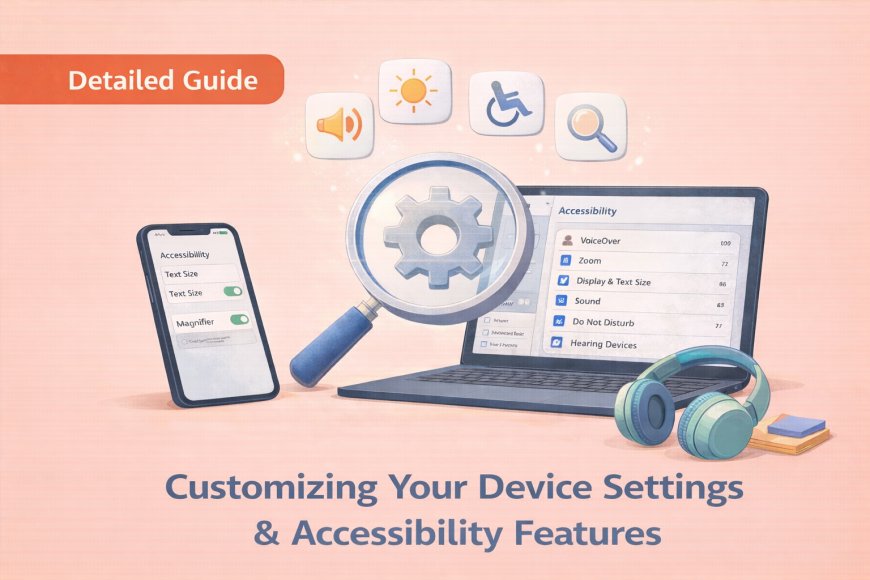
Your device is designed to work for you, and with just a few adjustments, it can feel considerably more comfortable and intuitive to use every day. This guide walks you through the settings that matter most: how to find them, how to tailor your screen and sound to suit your needs, and how to discover built-in features that make everything easier to see and hear. There's nothing here that can't be undone, so feel free to explore with confidence.
(A quick guide with the key points from this resource can also be downloaded as a PDF so you can read it anytime, even if you are offline. Click here to download your copy.)
Part 1: Finding & Using Settings (The Control Panel)
Before you can customize anything, you need to know where to look — and once you've found the Settings area, the rest becomes much simpler. Every device has one, and while the exact location differs slightly between phones, tablets, and computers, the idea is always the same: one central place where you're in control. Think of it as getting familiar with the layout of a new kitchen — a little exploration now saves a lot of searching later.

The "Settings" area is like the control panel in your car—it allows you to adjust how your device looks, sounds, and acts.
Objective: Learn to find your Settings menu quickly.
|
Your Device |
How to Find Settings (The Gear Icon) |
|
Smartphones/Tablets |
Look for the gear icon (it looks like the gears in a machine). Tap this icon to open your settings. |
|
Windows Laptops |
Press the Windows key and the letter I at the same time (Windows Key + I). Alternatively, click the Start menu (usually the Windows logo in the corner) and select Settings. |
|
Mac Laptops |
Click the Apple menu (the Apple logo in the top left corner) and choose System Preferences or Settings (depending on your Mac's version). |
Your Best Friend: The Search Function
Once Settings is open, look for the search bar or search box. This is your best friend! If you can't find a specific setting, simply type what you're looking for.
Practice Activity:
-
Open your Settings app or menu.
-
Use the search function to find "Wi-Fi".

Part 2: Display & Comfort Settings
Small adjustments to your screen can make an enormous difference to how comfortable and enjoyable your device is to use, particularly for reading. Everyone's eyes and preferences are different, so these settings aren't about right or wrong. They're about finding what works best for you personally. Even modest changes to brightness or text size can reduce eye strain and make your daily screen time noticeably more pleasant.
Your eyes are precious, so let's make reading easier and more comfortable. These settings are personal; what works for your neighbour might not work for you.
Objective: Adjust brightness and change text size for easier reading.
1. Brightness Adjustment
Adjusting brightness can reduce eye fatigue.
-
Navigate to Settings → Display.
-
Look for the brightness slider.
-
Adjust the slider: Brighter is better for reading outdoors; dimmer is better for evening reading.
-
Look for the adaptive/auto-brightness toggle; you can turn this on to let your device automatically adjust brightness based on the light around you.
-
Set this to your personal preference.

2. Text Size Adjustment
Bigger text isn't just for vision problems—it reduces fatigue for everyone.
-
Navigate to the text size settings (location varies by device).
-
Demonstrate moving the slider to make the text larger or smaller.
-
Test your new size by opening a text message or email.
-
Look for a bold text option where available, as this also makes reading easier.

3. Screen Timeout
Screen timeout is how long your device stays awake after you stop touching it.
-
In your Display settings, find Screen Timeout (or equivalent setting).
-
Set a screen timeout that feels comfortable for you.
Practice Activity: "Make It Your Own"
-
Try turning dark mode on or off to see if you prefer a light screen or a dark screen.
-
Adjust your settings to your personal preference.
Part 3: Accessibility & Sound Management
The accessibility and sound features on your device are among its most practical and underused tools, and they were designed with comfort in mind for every kind of user, not just those with specific needs. From silencing interruptions during a quiet afternoon to making text easier to read at a glance, these settings give you real control over your experience. Taking a few minutes to explore this section could change the way you use your device for the better.
These features help everyone, not just those with specific disabilities.
Objective: Learn how to zoom, manage sound, and find advanced accessibility options.
1. Zoom and Magnification Features
Zoom features work on almost everything: photos, text, and websites.
-
Smartphones/Tablets: Practice the pinch-to-zoom motion (using two fingers to expand or contract an image or text).

-
Laptops (Windows/Mac): Hold down the Control (Ctrl) key or the Command (Cmd) key and press the plus sign (+) key to zoom in on your screen.

2. Sound Management
-
Find your volume buttons on the side of your device.
-
Go to Settings → Sound.
-
Understand different volume types: There are separate sliders for your ringer/calls, media (like music or videos), and notifications.

3. Do Not Disturb
Use Do Not Disturb when you need peace—it's perfect for appointments, family time, or when you are trying to read.
-
Locate the Do Not Disturb setting (usually under Sound or Notifications).
-
Turn it on when you need to silence your phone without turning it off.

4. Accessibility Overview
Take a brief tour of the Settings → Accessibility section. These advanced options are there when you need them:
-
You can find settings for screen readers (which read text aloud), high contrast (which makes text stand out more), and captions.
Wrap-up & Resources
Congratulations! You've accomplished a lot today. You know where your Settings are, how to adjust text size, brightness, and how to use Do Not Disturb. Your confidence levels should visibly increase.
Take-Home Tips
-
Write down one change you made today that helped you most.
-
Practice these settings at home—muscle memory takes time.
-
Don't be afraid to experiment; you can always change things back.
-
Remember, you are the expert on what YOU need. Ask family members to help, but let them know what settings work best for your comfort.
Support
If you need help later:
-
You can contact local tech support contacts or device manufacturer support (like Apple Stores or carrier stores).
-
If you can't find a setting, remember to use the search function.
-
If your text is suddenly too small, check your accessibility settings for Zoom.
You are now more independent with your devices!
.
Return to the CyberSmarts for Seniors Introduction:
CyberSmarts for Seniors: Practical Lessons to Build Digital Confidence and Safety
.
.

This resource is part of the CyberSmarts for Seniors Project, funded in part by the Government of Canada’s
New Horizons for Seniors Program and ELNOS, and delivered in Elliot Lake by Raknas Inc. and Golden Voices, the seniors-focused division of the DiversityCanada Foundation.
.
Download PDF
How to download a quick guide with the key points of this article as a PDF:
—Click the File Name below (in blue).
— If your device is set up to download automatically, the file you just clicked will be saved where your downloaded items can be found (usually in your Downloads folder or Desktop).
—If your device is not set up to download automatically, a dialogue box should pop up.
—Click Save.
—According to your device settings, the file may now be saved where your downloaded items can be found (usually in your Downloads folder or Desktop).
—Alternatively, your device may show you a window, and you will have the chance to choose a location where you want to save the file. Choose a place that's easy to find, like Downloads, Documents, or Desktop.
—The PDF will be downloaded to your device.
—You can now open it anytime in the future, even without an Internet connection.