CyberSmarts for Seniors: Detailed Guide to Home Wi-Fi Security
 Admin
Admin 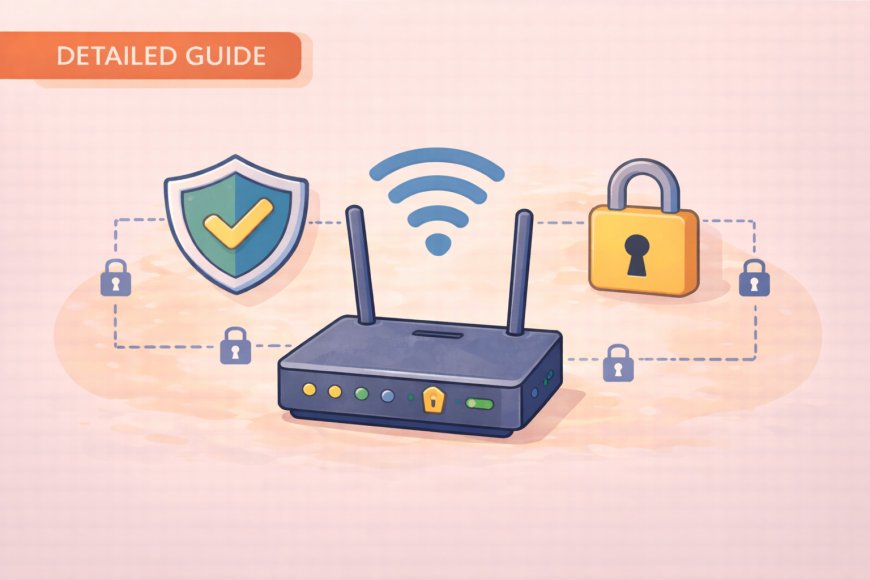
Your home Wi-Fi network is the front door to everything you do online, and like any front door, it deserves a good lock. Many people set up their internet connection once and never revisit it, leaving vulnerabilities that are surprisingly easy to fix. This guide walks you through the key steps to securing your home network, in plain language and at a pace that works for you.
(A quick guide with the key points from this resource can also be downloaded as a PDF so you can read it anytime, even if you are offline. Click here to download your copy.)
This guide covers how to properly secure your home Wi-Fi network, which serves as the gateway for all your digital activities, including online banking, video calling, and using smart home devices. Securing this critical infrastructure is essential.
1. SECURING YOUR HOME ROUTER
Your router is the device that brings the internet into your home, yet many people have never changed a single setting on it since the day it was installed. That is completely understandable, but those factory default settings are well known to hackers and are worth updating. The good news is that making these changes takes only a few minutes and does not require any technical background.
Many people think there is just one password for their home internet, but there are actually two different passwords you need to know about. Understanding this difference is the first step to keeping your network secure.
Section 1: The Two Password Types
Your home router has two separate passwords that do different jobs:
-
Wi-Fi Password: This is what you enter on your phone or laptop to connect to the internet. It gets you online.
-
Router Admin Password: This is what you use to change the router's settings. It lets you control how the router works.

Section 2: Wi-Fi Password Security
Most routers come with a default password printed on a sticker. These default passwords create security problems because they often follow predictable patterns that hackers know.
Why Changing the Default Password Matters: If someone connects to your network without permission, they can:
-
Slow down your internet.
-
Access files you are sharing between your devices.
-
In worst cases, they could try to hack your connected devices.
Changing Your Wi-Fi Password (Step-by-Step):
-
Find Login Info: Find your router's web address and current login information, usually on the sticker on the router.
-
Access Settings: When you access the router settings, look for sections called 'Wireless Settings' or 'Wi-Fi Settings'.
-
Create Strong Password: For a strong Wi-Fi password, use at least 12-15 characters with a mix of letters, numbers, and symbols.
-
Reconnecting Devices: After you save the new password, all your devices will disconnect. This is normal—you will just need to reconnect them using the new password.

Section 3: Router Admin Password
The admin password is often the bigger security risk because many routers use defaults like 'admin' and 'password'—or sometimes no password at all.
Risks of Compromised Admin Password: If someone gains admin access to your router, they can:
-
Change your Wi-Fi password and lock yourself out.
-
Redirect your internet traffic.
-
Monitor your online activity.
-
Change other security settings.
Key Rule: Make your admin password different from your Wi-Fi password. Never use the same password for both.
Changing the Admin Password: Access the same router settings page, but look for sections like 'Administration' or 'System Settings' instead of wireless settings.
Documentation (Crucial Step)
It is really important to keep a written record of your changes, especially for home routers.
Write down and store somewhere safe:
-
The date you made changes.
-
Your network name.
-
Your new Wi-Fi password.
-
Your new admin password.
If you forget these passwords, you might have to completely reset your router.

.
2. NETWORK CONFIGURATION AND ENCRYPTION
Beyond your password, two additional settings quietly determine how visible and how vulnerable your network is to outsiders. Encryption in particular is doing important protective work in the background every time you browse, bank, or send a message online. Understanding these settings helps you make sure your router is working as hard as possible to keep your information private.
1. Network Name (SSID) Configuration
Your Network Name, also called SSID, is the name you see when you go to connect a device to Wi-Fi. This is how your Wi-Fi network appears to anyone nearby.
Why Network Names Matter for Security: By default, your network name often shows the brand of your router, which tells strangers what kind of router you have. It can also reveal personal information.
Best Practices for SSIDs:
-
Do not use your name, address, phone number, or anything personal.
-
Do not use the router brand name (like “TP-Link”).
-
Do choose a name that’s neutral, random, or creative.
-
Examples: "NetworkAlpha", "Connection47", "WirelessPoint".

Hiding the Network Name (SSID):
-
Hiding the network name does not stop hackers; they can still find hidden networks using special tools.
-
It primarily makes it harder for you and your guests to connect.
-
It is better to focus on strong passwords and good network names than on hiding the SSID.
2. Encryption Protocols
Encryption means your router scrambles data into a secret code so that if someone nearby tries to "listen in," they cannot understand what they are seeing. It is like putting your message in a locked box—only you and the website have the key.

Why Encryption Matters: If your Wi-Fi is not protected by strong encryption, a hacker nearby can see your emails, steal your bank login info, and read your private messages.
Choose the Right Encryption Type:
-
WPA3: This is the newest and most secure protocol. It uses stronger 192-bit encryption and provides protection against offline dictionary attacks. If your router supports WPA3, use it. It also includes "forward secrecy"—meaning past traffic remains secure even if the password is compromised.
-
WPA2: This is still acceptable and widely supported. It uses AES encryption with 128-bit keys and is significantly more secure than older protocols.
-
WEP: This is obsolete and easily cracked by modern tools. Never use WEP encryption—it provides virtually no security.
Finding the Setting: Look for 'Security Type,' 'Encryption,' or 'Authentication Type' in your wireless settings. Select the highest level available on your router.

.
3. ROUTER MAINTENANCE AND DEVICE SECURITY
Keeping your network secure is not a one-time task; it is more like maintaining a car, where small, regular checkups prevent bigger problems down the road. This section covers the simple habits that keep both your router and your personal devices protected over time. None of these steps requires technical expertise; they simply require doing them consistently.
1. Keep Your Router Software Updated
Your router has built-in software called firmware that controls how it works. Just like phones and computers, routers sometimes need updates to fix problems and stay safe from new online threats. Firmware updates improve security and help your internet work better.
Updating Your Router Software (Firmware):
-
Find Brand and Model: Look for a sticker on the back or bottom of the device and write it down.
-
Search Online: In your browser, type: [Router brand] [Model number] firmware update (e.g., TP-Link Archer A6 firmware update).
-
Follow Official Instructions: Use the manufacturer’s website for safe steps. Follow them carefully, and do not turn off your router during the update.
-
Note: Many newer routers update automatically, but some older models do not. Consider replacing routers that are over 5 years old for better safety and speed.

2. Device Security (Built-in Protection)
To stay safe online, your devices (laptops, tablets, and phones) need protection too.
|
Security Measure |
Windows Users |
Mac Users |
|
Check Anti-Virus Protection (Security Guard) |
Type 'Windows Security' in the Start menu. Look for 'Virus & threat protection'; it should say 'You're protected'. |
Click the Apple symbol, go to System Settings, then Privacy & Security. Your Mac has invisible protection that works automatically. |
|
Turn On Your Firewall (Bouncer) |
Go to Windows Security, click 'Firewall & network protection'. Make sure all three options say 'Firewall is on'. |
In System Settings, find 'Network' then 'Firewall'. Turn it on if it is off (you might need your password). |
Three Simple Habits for Devices:
-
Update when asked: When your computer says 'updates available'—say yes! These fix security holes.
-
Monthly check-up: Once a month, run a full virus scan—like a health check-up for your computer.
-
Spring cleaning: Remove old programs you do not use—they can become security risks over time.

3. Two-Factor Authentication (2FA)
Enable two-factor authentication on your most important accounts.
Implementation Priority:
-
Email accounts (primary recovery method for other services).
-
Banking and financial services.
-
Social media accounts.
-
Shopping and e-commerce sites.
2FA Methods (Most Secure First):
-
Hardware Keys: Provides the highest security (e.g., YubiKey, Titan Security Key).
-
Authenticator Apps: More secure than SMS (e.g., Google Authenticator, Authy).
-
SMS (Text Message): Convenient but vulnerable to SIM swapping.
.
4. NETWORK MONITORING AND MANAGEMENT
One of the most overlooked aspects of home network security is knowing who and what is actually connected to it. Unfamiliar devices on your network can slow things down; in more serious cases, they can create real privacy and security risks. This section shows you how to check in on your network and take action when something does not look right.
1. Monitoring Who Uses Your Wi-Fi Network
Your Wi-Fi network is your home's private internet. Strangers might try to connect without permission, which can slow down your internet or cause other problems.
Signs Someone Might Be Using Your Wi-Fi:
-
Your internet feels slower than usual, even when your family is not using many devices.
-
You see device names you do not recognize connected to your Wi-Fi.
-
Your router settings have changed.
-
Your internet bill or data usage is higher than normal.
How to Check Who is Connected:
-
Log in to your router's admin panel.
-
Find the list of connected devices: Look for sections called “Connected Devices,” “Device List,” or “Network Map”.
-
Make a list: Write down the names and unique addresses (called MAC addresses) of devices you recognize.
-
Look for unknown devices: If you see devices you do not recognize, they might be strangers.
-
Remove unknown devices: You can disconnect or block devices you do not know, usually from the same router admin page.

2. Physical and Signal Security
-
Strategic Wi-Fi Shutdown: Consider turning off Wi-Fi when you are away for extended periods. This reduces the attack window and saves energy. You can consider using automated scheduling features.
-
Physical Router Security: Secure the physical router itself. Place it in a secure, central location with adequate ventilation. Protect the power adapter from tampering.
-
Router Placement and Signal Management: Position your router strategically to minimize signal leakage outside your property. You can also consider signal strength reducers for apartment living.
-
MAC Address Filtering: This creates a whitelist of allowed device MAC addresses for high-security environments. Security Note: MAC addresses can be spoofed by sophisticated attackers, and this feature requires maintenance when adding new devices.
.

5. MAINTENANCE SCHEDULE AND EMERGENCY RESPONSE
Even a well-secured network benefits from occasional attention. Having a plan in place before something goes wrong makes all the difference. This final section gives you a simple routine to follow throughout the year, along with clear steps to take if you ever suspect your network has been compromised. Think of it as your home network's annual checkup combined with a first-aid kit.
1. Security Maintenance Schedule
Establishing a regular routine helps catch issues before they become serious problems.
|
Frequency |
Task |
|
Weekly Tasks |
Check the connected devices list. Monitor unusual data usage patterns. |
|
Monthly Tasks |
Review and update device inventory. Check for firmware updates. Rotate guest network password. |
|
Quarterly Tasks |
Change the main Wi-Fi password. Review and update router security settings. Audit 2FA settings across all accounts. |
|
Annual Tasks |
Comprehensive security assessment. Consider a router hardware upgrade. Review and update the entire network security strategy. |
2. Emergency Response Plan
If you suspect network compromise, follow these immediate steps without delay:
-
Immediately disconnect the router from the internet.
-
Change all passwords (router admin, Wi-Fi, and online accounts).
-
Update firmware to the latest version.
-
Scan all connected devices for malware.
-
Consider a factory reset if the compromise is severe.
-
Document the incident and review security measures.
Warning Signs to Monitor: Watch for these signs that indicate potential security issues:
-
Unexpected password change notifications.
-
Unusual device behaviour or performance.
-
Unknown software installations.
-
Unexpected network activity during off-hours.

Final Message: A comprehensive approach to Wi-Fi security creates multiple layers of protection, making your home network significantly more resistant to unauthorized access and cyber threats. Remember, security is an ongoing process, not a one-time setup.
Additional Resources
-
Canadian Anti-Fraud Centre: 1-888-495-8501.
-
GetCyberSafe.ca for additional tips.
-
Local police department for scam alerts.
.
.
Return to the CyberSmarts for Seniors Introduction:
CyberSmarts for Seniors: Practical Lessons to Build Digital Confidence and Safety
.
.

This resource is part of the CyberSmarts for Seniors Project, funded in part by the Government of Canada’s
New Horizons for Seniors Program and ELNOS, and delivered in Elliot Lake by Raknas Inc. and Golden Voices, the seniors-focused division of the DiversityCanada Foundation.
.
.
Download PDF
How to download a quick guide with the key points of this article as a PDF:
—Click the File Name below (in blue).
— If your device is set up to download automatically, the file you just clicked will be saved where your downloaded items can be found (usually in your Downloads folder or Desktop).
—If your device is not set up to download automatically, a dialogue box should pop up.
—Click Save.
—According to your device settings, the file may now be saved where your downloaded items can be found (usually in your Downloads folder or Desktop).
—Alternatively, your device may show you a window, and you will have the chance to choose a location where you want to save the file. Choose a place that's easy to find, like Downloads, Documents, or Desktop.
—The PDF will be downloaded to your device.
—You can now open it anytime in the future, even without an Internet connection.