CyberSmarts for Seniors: Detailed Guide to Getting Started with Your Device
 Admin
Admin 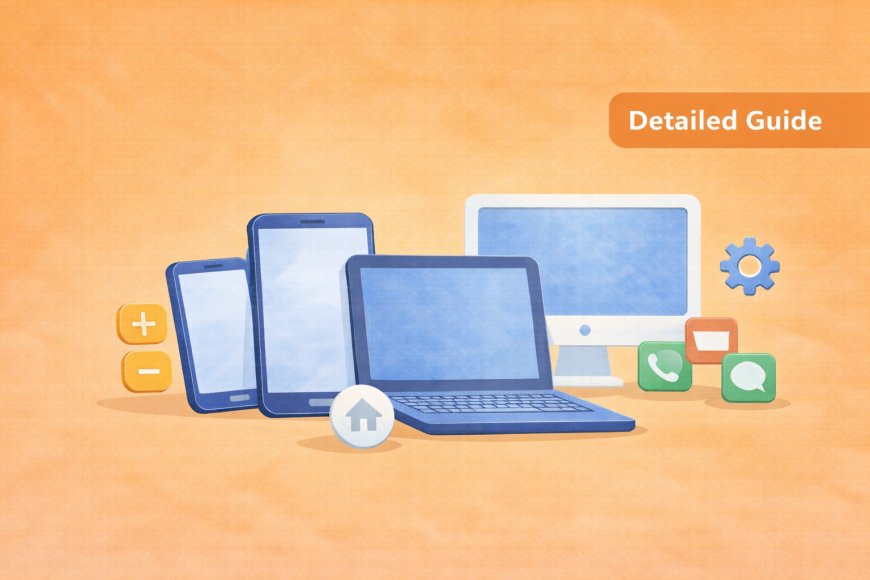
Starting to use a new device can feel overwhelming, but everyone begins at the same place — the very beginning. This guide will walk you through everything step by step, in plain language with no assumptions about what you already know. By the time you're done, you'll have a solid foundation to build your confidence on.
(A quick guide with the key points from this resource can also be downloaded as a PDF so you can read it anytime, even if you are offline. Click here to download your copy.)
1. Getting to Know Your Device
Types of Devices
Before we begin to explore how your device works, it helps to understand what kind of device you have and what makes it unique. Just like different kitchen appliances or woodworking tools serve different purposes, each type of device has its own strengths. Getting familiar with yours is the first step to feeling at home with it.
Today, there are several kinds of devices people use to go online and stay connected. They all do many of the same things, but come in different shapes and sizes to suit different needs and lifestyles. Knowing which one you have will make the rest of this guide much easier to follow.
 Smartphone: A phone that can do many things beyond calling
Tablet: A larger touchscreen device, like an iPad
Laptop: A small portable computer that opens to reveal the screen and keyboard
Desktop Computer: A computer that's so big, you need to keep it on your desk
Finding the Important Buttons
Every device has a small number of physical buttons that control the most basic functions, and knowing where they are makes a world of difference. Don't worry — there aren't many, and you'll find them quickly once you know what to look for. Let's go through them one by one.
Power Button
The power button is the most important button on your device — it's what brings it to life. Its location varies slightly depending on what kind of device you have, but it always works in a similar way. Once you find yours and learn how to use it, you're already off to a great start.
Where to find it:
-
Smartphones: Usually on the right side or top edge
-
Tablets: Usually on the top or side edge
-
Laptops: Often above the keyboard or on the side
-
Desktop Computers: On the front of the tower or monitor
What the Power Button Does:
-
Short press (quick tap): Wakes up the screen if it's sleeping
-
Long press (hold for 2-3 seconds): Turns the device completely on or off
Let's Practice:
-
Find your power button
-
If your device is off, press and hold the power button for 2-3 seconds
-
Wait for the screen to light up or a logo to appear
-
If nothing happens, check if your device needs charging
Volume Buttons
Sound is a big part of using your device, whether you're watching a video, listening to music, or hearing a notification. Your volume buttons give you quick, easy control over how loud or quiet your device is at any moment. They're usually right next to the power button, so they're easy to find once you know what you're looking for.
Where to find them: Usually, there are two buttons near the power button
-
Volume Up (+): Makes sounds louder
-
Volume Down (-): Makes sounds quieter
When to use them:
-
Making ringtones louder or quieter
-
Adjusting music or video volume
-
Turning down notification sounds
Home Button
No matter where you are on your device, the home button is your way back to familiar ground. Think of it as your "safe return" button. It looks and works slightly differently depending on your device, but its purpose is always the same. Knowing how to use it means you'll never feel truly lost, no matter what screen you end up on.
What it looks like:
-
Maybe a physical button below the screen
-
May appear as an icon on the screen
-
On some devices, you swipe up from the bottom instead
What it does: Takes you back to your main screen from anywhere

2. Understanding Your Screen
Your screen is your window into everything your device can do, and getting comfortable with it is key to enjoying the experience. It may behave in ways that surprise you at first, but there's always a simple explanation. This section will help you understand what you're seeing and how to make the screen work just right for you.
When Your Screen Goes Black - Don't Worry!
This is normal! Your device is just "sleeping" to save battery.
One of the most common surprises for new device users is a screen that suddenly goes dark. Rest assured, nothing is broken — your device is simply taking a little nap to save its battery. A single press of the power button is all it takes to wake it right back up.
To wake it up: Press the power button once (short press)
Making Your Screen Comfortable to See
Your device is meant to be enjoyable to use, and that starts with a screen that's easy on your eyes. Brightness that's too harsh or too dim can make reading and viewing unnecessarily tiring. The good news is that adjusting it takes just a few simple taps, and you can change it anytime to suit the light around you.
Adjusting Screen Brightness
-
Look for the Settings app (looks like a gear ⚙️)
-
Tap or click on Settings
-
Look for "Display" or "Brightness"
-
Move the slider left (darker) or right (brighter)
-
Choose what's comfortable for your eyes
Understanding Apps - Your Digital Tools
Think of apps like tools in a toolbox. Each app has a specific job to do.
Apps are what make your device truly useful, and there are just a handful you really need to know to get started. Each one has a little picture, called an icon, that gives you a clue about what it does. Once you learn to recognize a few key apps, navigating your device will start to feel much more natural.
Essential Apps to Know First:
Rather than trying to learn everything at once, it's best to start with just a few apps that are immediately useful and easy to understand. These are the ones you'll turn to most often in everyday life. Getting comfortable with them first will build your confidence to explore more when you're ready.
Clock App
-
Looks like: A round clock face
-
What it does: Shows time, can set alarms
-
Why start here: Everyone knows how to read a clock
Settings App ⚙️
-
Looks like: A gear or wrench
-
What it does: Let's you adjust your device (brightness, volume, etc.)
-
Why it's important: Helps make your device work better for you
Camera App
-
Looks like: A small camera
-
What it does: Takes photos and videos
-
Fun fact: Great for taking pictures of grandchildren!
Phone App (on smartphones)
-
Looks like: An old-style phone handset
-
What it does: Makes and receives phone calls
-
Remember: This is still a phone first!
Photos App
-
Looks like: A colourful flower or mountain scene
-
What it does: Shows pictures you've taken
-
Tip: Perfect for showing off family photos

Other Useful Apps You'll See:
Beyond the essential apps, your device comes with several others that can make daily life a little more convenient and connected. You don't need to learn them all right away. Just know they're there when you need them. Think of them as helpful extras waiting to be discovered at your own pace.
Calendar: Keep track of appointments and important dates.
Messages: Send text messages to family and friends
Contacts: Store phone numbers and addresses
Email: Send and receive electronic mail (like Gmail)
Weather: Check today's temperature and forecast
Maps: Get directions to places (very helpful in Canada's big cities!)
3. How to Interact With Your Device
For Smartphones and Tablets:
Learning to interact with your device is a little like learning a new handshake; once you get the feel for it, it becomes second nature. There are really only a few basic moves to learn, and none of them require any special skill or experience. This section walks you through each one, with simple comparisons to everyday actions you already know.
First, let's talk about touchscreens that allow you to interact with your smartphone and tablet, and even some newer laptops and desktop computers. Touchscreens respond to the lightest touch of your fingertip, which surprises many first-time users who expect to press harder. The key is to stay relaxed and let your finger do the work with minimal effort. The two most important moves are the tap and the swipe, and between them, you can do almost everything on your device.
The Gentle Tap
The tap is the most basic and most used gesture on a touchscreen, and it's exactly what it sounds like. A single, light touch of one finger is enough to open apps, select options, and get things done. Most beginners press too firmly at first, so think "feather-light," and you'll get it right away.
How to do it: Touch the screen lightly with one fingertip, like you're gently poking someone to get their attention.
Practice: Try tapping the Clock app icon.
Common mistake: Pressing too hard - these screens are very sensitive!
Helpful tip: Pretend you're touching a soap bubble; imagine being gentle enough not to pop it
The Smooth Swipe
The swipe is how you move around on your device, and it's one of the most satisfying gestures to master. A smooth, fluid slide of your finger across the screen lets you browse apps, scroll through websites, and explore content in any direction. Like most things on a touchscreen, the trick is to stay relaxed and keep your movements gentle and steady.
How to do it: Place your finger on the screen and slide it smoothly in one direction, like wiping a window clean
When to use it:
-
Swipe left or right to see more apps
-
Swipe up or down to scroll through lists or websites
Practice Activity:
-
Put your finger on the screen
-
Gently slide it from left to right
-
Notice how the screen content moves
-
Try swiping right to left
-
Try swiping up and down
For Computers:
With a computer, instead of using your finger to point to and tap icons, you use a device called a mouse. Using a computer mouse may feel unfamiliar at first, but it quickly becomes a comfortable, reliable tool for getting around your screen. The mouse controls a small arrow on your screen, and wherever you move the mouse on your physical desk, the arrow on the computer screen follows. There are just two key actions to learn: the single click and the double-click.
The Quick Click
The single click is your main way of selecting and interacting with things on a computer screen. One quick, light press of the left mouse button is all it takes, and the most important thing is to keep the mouse perfectly still while you do it. It takes a little practice, but you'll find your rhythm quickly.
How to do it: Press the left button on your mouse once, quickly, like pressing a doorbell - quick and light
Practice: Click on the Clock icon on your desktop
Common mistake: Moving the mouse while clicking - keep it still!
The Double-Click
The double-click is used in specific situations, mainly when you want to open something like a photo or a document. It's the same light press as a single click, just done twice in quick succession. If nothing happens on your first try, simply try again at a slightly faster pace.
How to do it: Press the left mouse button twice quickly, like knocking twice quickly on a door
When to use it: Opening files like photos or documents
Practice: Find a photo file and double-click to open it
4. Navigation and Managing Apps
Once your device is on and the screen is awake, you need just a few basic skills to move around it comfortably. The most important thing to know is how to find your way back to familiar ground whenever you feel uncertain. With a little practice, getting around your device will feel as natural as moving from room to room in your own home.
Finding Your Way Home
Your Home screen is your starting point and your safe return, and knowing how to get back to it will give you real confidence as you explore. No matter how far you wander into apps or settings, one simple action always brings you back. How you get there depends slightly on your device, but the result is always the same.
Your Home Screen is like the front door of your house - it's where you start and where you can always return to.
Different Types of Home Buttons:
Physical Button: A real button you can feel below the screen
On-Screen Button: An icon that appears on your screen (usually looks like a house or circle ⭕)
Swipe Gesture: On newer devices, swipe up from the very bottom of the screen

When You Feel "Lost"
Feeling momentarily lost on a device is something every beginner experiences, and it's nothing to worry about. Your Home button exists for exactly this reason, and using it will never cause any harm or delete anything. Think of it as your reset button, always ready to bring you back to a place you recognize.
Remember: The Home button is your "safe space"
If you get confused, press the Home button to return to your main screen
It's okay to feel lost: Everyone feels this way when learning!
Practice: Opening and Closing Your First App
The best way to build confidence is to actually try things, and the Clock app is the perfect place to start. It's familiar, straightforward, and completely safe to open and close as many times as you like. Follow the steps below at your own pace, and don't be surprised if you feel genuinely proud when you're done.
Let's practice with the Clock app because everyone knows how clocks work!
Step-by-Step Practice:
-
Find the Clock app on your home screen (looks like a clock face)
-
Tap or click once on the Clock app icon
-
Wait a moment for the app to open
-
Look around - you should see the current time
-
Notice other features - maybe world clocks or timers
-
Return home by pressing your Home button
-
Celebrate! You just opened and closed your first app!
How to Close Apps Safely:
Many beginners worry that closing an app might cause them to break something important, but that concern can be set aside entirely. Closing an app simply puts it away until you need it again, much like closing a book. It's a good habit to return to your Home screen when you're finished with an app, and as you'll see, it takes just one simple action.
For Phones/Tablets:
-
Press the Home button, OR
-
Swipe up from the bottom (on newer devices)
For Computers:
-
Click the X button in the top-right corner of the window
Important: Closing apps is completely safe - you won't lose anything important!
5. Daily Practice Routine
Like any new skill, using your device gets easier the more you do it, and short daily practice is the fastest way to build confidence. The routine suggested here starts very small and adds just one new step at a time, so you never feel overwhelmed. Before long, these actions will feel automatic and you'll wonder why you ever found them daunting.
Your Daily Practice (Don't worry - it's easy!)
First Few Days: Getting Comfortable
The very first goal is simply to make turning your device on and off feel like no big deal. It's a small thing, but doing it once a day builds a reliable sense of familiarity with your device. Repetition is your friend here, and there's no such thing as practicing this too many times.
Daily task: Turn your device on and off once each day
Goal: Make this feel natural and automatic
Remember: Count "one-Mississippi, two-Mississippi" when holding the power button
After a Few Days: Adding One App
Once turning your device on and off feels comfortable, it's time to add one small step to your daily routine. Opening the Clock app gives you a real, useful reason to interact with your device every day. Each time you do it, you're reinforcing skills that will serve you well as you learn more.
Daily task: Continue turning the device on/off, PLUS open the Clock app once.
Steps:
-
Turn the device on
-
Find Clock app
-
Tap/click to open
-
Look at the time
-
Press the Home button to return
-
Turn the device off (optional)
Take your time - practice at your own pace!
Troubleshooting Guide - When Things Don't Work
Every device runs into small hiccups from time to time, and knowing how to respond calmly makes all the difference. Most common problems have simple solutions that don't require any technical knowledge at all. This section covers the issues beginners encounter most often, so you can handle them with confidence rather than frustration.
Device Won't Turn On
A device that doesn't respond when you press the power button is almost always just a battery or power issue, and the fix is straightforward. Before assuming something is wrong, work through the simple checks below one at a time. In most cases, one of them will solve the problem within minutes.
Try these steps:
-
Check if the charging cable is plugged in properly
-
Try a different power outlet
-
Hold the power button longer (up to 10 seconds)
-
Look for a small light that shows it's charging

Screen Problems
Screen issues are among the most common things new users notice, and they're almost always easy to fix. Whether your screen looks too bright, too dark, or isn't responding to your touch, there's usually a simple remedy for each situation. A few taps in the right place, or sometimes just a quick restart, is usually all it takes.
Screen too bright or dark:
-
Find Settings app (gear icon)
-
Look for "Display" or "Brightness"
-
Adjust the slider
Screen won't respond to touch:
-
Try turning the device off and on again
-
Make sure the screen is clean
-
Try touching more gently
App Problems
Apps occasionally misbehave, and it can feel alarming the first time it happens. The good news is that the solution is almost always the same two or three steps, none of which require technical skill. If an app gives you trouble, the steps below will resolve the issue the vast majority of the time.
App won't open or looks funny:
-
Press the Home button to return to the main screen
-
Try opening the app again
-
If you're still having trouble, turn the device off and on again
-
Remember: this is normal troubleshooting - you're not doing anything wrong!
Helpful Tips for Success
Learning to use a device is a journey, and like any journey, a few good habits make the whole experience smoother and more enjoyable. This section brings together some simple strategies to help the new skills you've been building really stick. Think of these as friendly reminders to carry with you as you continue to practice.
Learning Strategies
The way you practice matters just as much as how often you practice. A few small adjustments to your approach can make new skills easier to absorb and remember. The suggestions below have helped many beginners feel more capable and comfortable in a surprisingly short time.
Talk to yourself: Say each step out loud as you do it - "Now I'm pressing the power button."
Practice daily: Even 5 minutes a day helps build confidence
Start small: Master one thing before moving to the next
Ask for help: Family, friends, or library staff are usually happy to help

Building Confidence
It's completely normal to feel uncertain when learning something new, but it's worth remembering that you've successfully tackled unfamiliar technology before. The same patience and persistence that helped you learn those skills will serve you just as well here. Using a device is simply a modern skill, and there is absolutely no age limit on learning it.
Remember: You've learned many complicated things in your life - driving a car, using a microwave, operating a TV remote. This is just another skill that gets easier with practice. Every expert was once a beginner - even teenagers had to learn this stuff! You're not "too old" - learning has no age limit.
Canadian Resources for Help
You don't have to figure everything out on your own, and across Canada there are plenty of friendly, welcoming places to get a little extra help. Many of these resources are free and designed with beginners in mind. Whether you prefer learning in a group or one-on-one, there's likely something available right in your own community.
Local libraries: Most Canadian libraries offer free technology classes
Community centres: Many offer senior-friendly tech sessions
Retail stores: Staff can sometimes help you understand issues with your device and it may not cost you anything
Success Checklist
As we wrap up, take a moment to look back at how much ground you've covered. This checklist captures the key skills from this guide, and being able to tick them off is something genuinely worth feeling good about. Remember, the goal was never perfection but simply to feel more comfortable and capable than when you started, and that is a real achievement.
By the end of this, you should feel comfortable with:
-
[ ] Finding and pressing the power button
-
[ ] Turning your device on and off safely
-
[ ] Recognizing that a black screen means "sleeping," not broken
-
[ ] Identifying the Clock, Settings, and Camera app icons
-
[ ] Using gentle taps or clicks to open apps
-
[ ] Finding and using the Home button to return to your main screen
-
[ ] Opening the Clock app and returning home
Remember: Success isn't about being perfect - it's about feeling more comfortable and confident than when you started!
.
Return to the CyberSmarts for Seniors Introduction:
CyberSmarts for Seniors: Practical Lessons to Build Digital Confidence and Safety
.

This resource is part of the CyberSmarts for Seniors Project, funded in part by the Government of Canada’s
New Horizons for Seniors Program and ELNOS, and delivered in Elliot Lake by Raknas Inc. and Golden Voices, the seniors-focused division of the DiversityCanada Foundation.
.
Download PDF
How to download a quick guide with the key points of this article as a PDF:
—Click the File Name below (in blue).
— If your device is set up to download automatically, the file you just clicked will be saved where your downloaded items can be found (usually in your Downloads folder or Desktop).
—If your device is not set up to download automatically, a dialogue box should pop up.
—Click Save.
—According to your device settings, the file may now be saved where your downloaded items can be found (usually in your Downloads folder or Desktop).
—Alternatively, your device may show you a window, and you will have the chance to choose a location where you want to save the file. Choose a place that's easy to find, like Downloads, Documents, or Desktop.
—The PDF will be downloaded to your device.
—You can now open it anytime in the future, even without an Internet connection.