CyberSmarts for Seniors: Detailed Online Safety Guide
 Admin
Admin 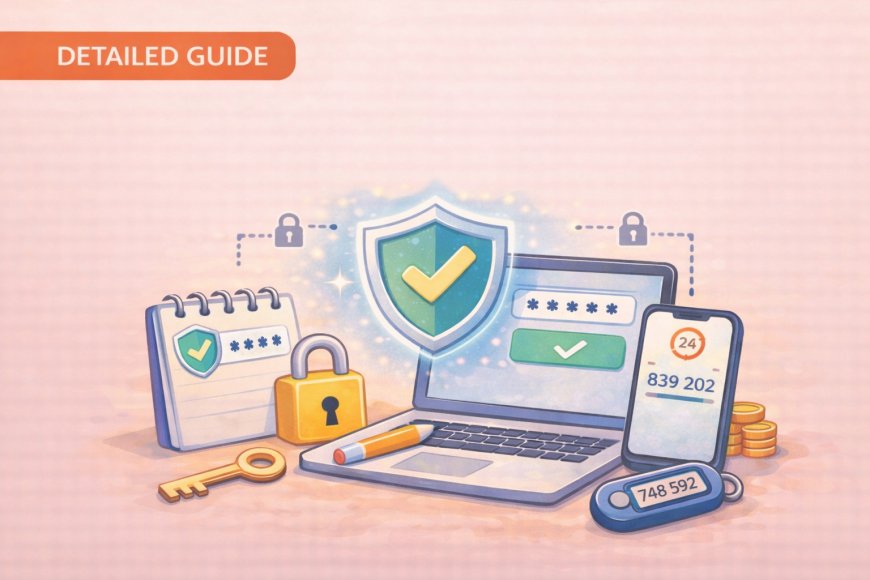
Staying safe online does not require a technology degree; it simply requires a few good habits applied consistently. This guide focuses on three skills that will dramatically improve your security: creating strong passwords, adding a second layer of protection to your accounts, and setting up a simple app that keeps hackers out. Take it one section at a time, and by the end you will have practical tools you can start using today.
(A quick guide with the key points from this resource can also be downloaded as a PDF so you can read it anytime, even if you are offline. Click here to download your copy.)
Let us explore three critical areas that will significantly improve your online security: password management, two-factor authentication (2FA), and setting up Google Authenticator. This guide is designed for learners with basic computer and internet skills.
.
1. PASSWORD MANAGEMENT
Your passwords are the keys to your entire digital life; choosing them carefully is one of the most important things you can do for your online safety. The good news is that strong passwords do not have to be confusing strings of random characters you can never remember. The tips and strategies below will show you a simpler, smarter approach that is actually easier than what most people are doing now.
The Front Door Analogy: If someone wanted to break into your house, you would not use the same key for your front door, your car, your mailbox, and your safe. But many people do exactly that with their online accounts.

If you use the same password for your email and other accounts, a hacker only needs to break into one account to access them all. They can use your email to reset passwords and take over accounts like Facebook or banking applications. This is why it is important to create strong, unique passwords for each account.
Personal Protection: Think about what you have online—your photos, your messages with family, your banking information. These are not just accounts; they are pieces of your life that deserve protection.
The Passphrase Method
Instead of trying to remember random letters and numbers, the passphrase method uses something much easier.
Steps to Create a Passphrase:
-
Choose 4 Random Words: Think of four completely unrelated words.
-
Example: Blue, Elephant, Pizza, Telephone.
-
Add Security: Make it even stronger by adding numbers and symbols.
-
Example: Blue3Pizza!Elephant7Telephone.
-
Result: This is 27 characters long and nearly impossible to crack, but easy to remember.

Password DO's and DON'Ts
|
DO's - Emphasize These |
DON'Ts - Common Mistakes |
|
Use a different password for every single account—no exceptions. |
Never use family names, pet names, or birthdates. |
|
Update passwords every 3–6 months, especially for banking and email. |
Don't use the same password everywhere—if one gets hacked, they are all compromised. |
|
Always use a password manager—your memory is not meant for this. |
Never share passwords through email or text—these are not secure. |
|
Longer is better—aim for at least 12 characters. |
Don't write passwords on sticky notes—they can be lost or seen. |
Password Rotation Strategy
Apply different security levels based on risk:
-
High-risk accounts (banking, email, password manager): Change every 3–6 months.
-
Medium-risk accounts (social media, shopping): Change annually or after breaches.
-
Low-risk accounts (news sites, forums): Change only if compromised.

Password Manager Benefits
Password managers exist because it is difficult to remember many complicated passwords. Using one is one of the best decisions you can make for your online safety.
-
Security: Even if a password manager were hacked, your passwords are encrypted (scrambled up so badly) that hackers cannot read them. It is like having a safe within a safe, or having your passwords written in a secret code that only you and your device know how to read. This is much safer than reusing the same password or writing them down on paper.
-
Key Benefits:
-
One Master Password: You only need to remember ONE strong password.
-
Automatic Generation: The software creates impossibly strong passwords for you.
-
Auto-Fill: No more typing—it fills everything in automatically.
-
Sync Across Devices: Works on your phone, tablet, and computer.
-
Forgotten Master Password: Password managers have recovery options. It is recommended to write down your master password and store it in a safe place—like a home safe or safety deposit box. This is safer than having dozens of passwords written on sticky notes around your house.
-
Offline Access: Your password manager stores your passwords locally on your device, so you can still access them even if the internet is down.
Built-in Password Manager Setup:
-
For Chrome Users: Click the three dots in the top right corner, go to Settings, then Autofill, then Passwords. Turn on "Offer to save passwords" and "Auto Sign-in".
-
For iPhone/Mac Users: Go to Settings on your iPhone, tap your name at the top, then iCloud. Find "Passwords and Keychain" and turn it on.
-
For Edge Users: Open Edge, click the three dots, go to Settings, then Profiles, then Passwords. Turn on both options.
.

2. TWO-FACTOR AUTHENTICATION (2FA)
Even the strongest password can occasionally fall into the wrong hands through no fault of your own. Two-factor authentication solves this problem by requiring a second form of identification before anyone can access your account. The steps below will show you how straightforward this extra layer of protection really is; most people are surprised by how quick it is to set up.
2FA is adding a second layer of security. Think of it as adding a deadbolt to your front door. Even if you have the world's strongest password, hackers might still get it (e.g., through a fake website or a company database hack). But with 2FA, they still cannot get into your account.
Simple Explanation
2FA means you need two things to get into your account:
-
Something you know (your password).
-
Something you have (your phone).
Real-World Analogy: It is like using an ATM—you need your card AND your PIN. A thief cannot use just one without the other.

How 2FA Works
-
You enter your username and password as usual.
-
The website sends a code to your phone.
-
You enter that code to complete the login.
-
Even if someone steals your password, they cannot get in without your phone.
Types of 2FA:
-
Text Message: Code sent to your phone via SMS.
-
Authenticator App: Special app that generates codes.
-
Email: Code sent to your email address.
Setting Up 2FA
Priority Accounts: Set up 2FA on these accounts first:
-
Your email (most important!).
-
Banking and financial accounts.
-
Social media accounts.
-
Any shopping accounts with saved payment info.
General Steps (Demonstrate with Email Account):
-
Find Security Settings: Look for 'Security' or 'Account Settings'.
-
Enable 2FA: Find 'Two-Factor Authentication' or 'Two-Step Verification'.
-
Choose Method: Start with text message—it is the easiest.
-
Verify: Enter the code they send to confirm setup.
-
Save Backup Codes: Print these out and keep them safe!.
Important 2FA Tips:
-
Keep backup codes in a safe place—not on your phone.
-
Never share 2FA codes with anyone—legitimate companies will not ask.
-
If you lose your phone, contact customer service immediately.
.
3. GOOGLE AUTHENTICATOR SETUP
If you have started using two-factor authentication with text messages, you have already taken a great step forward. Google Authenticator takes that protection a little further; it generates your security codes directly on your phone, with no cell service or internet connection required. The setup may sound technical, but the step-by-step instructions below are designed to walk you through it clearly and calmly.
Google Authenticator is more secure than text messages because it works even without cell service.
Why Authenticator Apps Are Better:
-
Codes are generated right on your phone, making them much harder to steal than text messages. Criminals can sometimes intercept text messages or convince your phone company to give them a new SIM card with your number.
-
Once set up, the app generates codes instantly, and you do not need to worry about having cell service or Wi-Fi.
-
Google Authenticator works even if the internet goes down because it generates codes using your phone's internal clock.

Step-by-Step Setup
1. Download the App:
-
Go to your app store and search for "Google Authenticator".
-
Download and install it—it is free.
2. Enable 2FA on Service:
-
Log into the account you want to protect.
-
Go to security settings.
-
Choose "Authenticator App" instead of text message.
3. Scan QR Code:
-
The website will show you a square barcode.
-
Open Google Authenticator.
-
Tap the "+" button and choose "Scan QR code".
-
Point your camera at the barcode.
4. Verify Setup:
-
The app will show you a 6-digit number.
-
Type this number into the website.
-
Note: The number changes every 30 seconds—that is normal!.
5. Backup Codes:
-
Always save your backup codes! If you lose your phone, these codes will save you from being locked out.
-
Example: One person dropped their phone in a lake; because they had their backup codes written down and stored safely at home, they were able to get back into all their accounts within a day. Without those codes, it would have taken weeks of calling customer service for each account.

.
4. REVIEW AND ACTION PLANNING
Learning something new is most valuable when it leads to real action. This final section ties together everything covered in the guide; it also gives you a simple, manageable checklist so you know exactly where to start. You do not need to do everything at once. Tackling just one or two items this week is a meaningful step toward protecting your digital life.
Importance of Cybersecurity
Cybercrime costs Canadian individuals and businesses billions of dollars every year. The good news is that people who use strong passwords and two-factor authentication are 99.9% less likely to be hacked. These simple steps can protect your entire digital life. It is like wearing a seatbelt—it takes just a moment, but it can save you from a lifetime of problems.
Key Concepts Review
-
Urgent Emails: What should you do first when you receive an urgent email?
-
Answer: Pause and think before acting.
-
Passphrase Effectiveness: What makes the passphrase method effective?
-
Answer: It is long (aim for at least 12 characters) and hard for computers to crack.
-
2FA Function: Why is 2FA like having two locks?
-
Answer: It provides double protection—it needs both a password and access to your phone.

Action Planning
Before the next session, commit to these actions:
-
Set up 2FA on your email account.
-
Enable your browser's password manager.
-
Create strong passwords for your three most important accounts.
Additional Resources
-
Canadian Anti-Fraud Centre: 1-888-495-8501.
-
GetCyberSafe.ca for additional tips.
-
Local police department for scam alerts.
.
Return to the CyberSmarts for Seniors Introduction:
CyberSmarts for Seniors: Practical Lessons to Build Digital Confidence and Safety
.
.
.

This resource is part of the CyberSmarts for Seniors Project, funded in part by the Government of Canada’s
New Horizons for Seniors Program and ELNOS, and delivered in Elliot Lake by Raknas Inc. and Golden Voices, the seniors-focused division of the DiversityCanada Foundation.
.
.
Download PDF
How to download a quick guide with the key points of this article as a PDF:
—Click the File Name below (in blue).
— If your device is set up to download automatically, the file you just clicked will be saved where your downloaded items can be found (usually in your Downloads folder or Desktop).
—If your device is not set up to download automatically, a dialogue box should pop up.
—Click Save.
—According to your device settings, the file may now be saved where your downloaded items can be found (usually in your Downloads folder or Desktop).
—Alternatively, your device may show you a window, and you will have the chance to choose a location where you want to save the file. Choose a place that's easy to find, like Downloads, Documents, or Desktop.
—The PDF will be downloaded to your device.
—You can now open it anytime in the future, even without an Internet connection.