CyberSmarts for Seniors: Basics of a Chromebook (Video 3)
Learn the essential components of Chromebook computers and how they differ from regular laptops and desktop computers.
 Admin
Admin 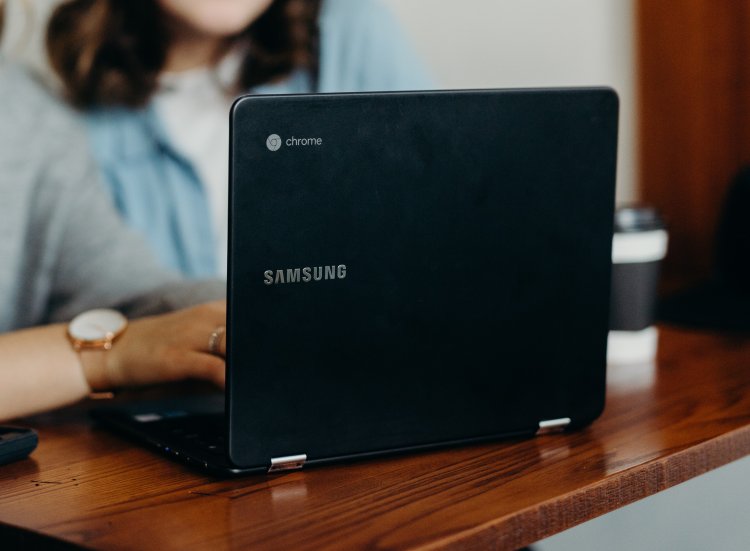
Chromebooks are a type of portable computer designed for using the Internet in your day-to-day life. They are very similar to laptops in design, as they both have a hinged screen, a smaller keyboard, and a trackpad. However, there are a few key differences to note.
Chromebooks use a special operating system called ChromeOS. An operating system is the whole set of instructions that a computer manufacturer builds into the device to make it turn on and function.
The Chromebook’s operating system is designed around being online and having quick access to the most frequent internet applications, such as Gmail, Youtube, and Facebook.
In contrast, getting onto the Internet is only a tiny part of what the operating systems of regular laptops and desktops are built to do.
With regular laptops and desktop computers, you can buy a wide variety of computer programs from various vendors and install them onto your laptop or desktop computer. Such computer programs can allow users to do things like paint and draw, manipulate photos, and design cars and houses.
By contrast, the Chromebook has its own app store, the Google Play Store, where you can download most typical applications you might use on a laptop or desktop. However, only applications available in the Play Store can be downloaded and used.
Other third-party software, such as computer games, cannot be installed as the operating system is not designed for it.
Suppose most of your computer use will be for online purposes. In that case, Chromebooks are the most optimal solution, as they are generally cheaper and easier to use than a Windows or Mac computer.
Now you understand the basics of a Chromebook. In our next lesson, we’ll take a look at some common computer accessories.
This is Part 3 of a 7-Part series. You will get the most benefit out of this series if you watch the videos in order.
Part 3 - Basics of a Chromebook
Part 4 - Common Computer Accessories
Part 6 - Navigating the Windows Homescreen
Part 7 - Navigating the Mac Homescreen
.
Return to the Introduction to the Computer Basics Video Lessons:
Become Computer-Savvy (Video Lessons Intro)
.
Return to the CyberSmarts for Seniors Introduction:
CyberSmarts for Seniors: Practical Lessons to Build Digital Confidence and Safety

This resource is part of the CyberSmarts for Seniors Project, funded in part by the Government of Canada’s
New Horizons for Seniors Program and ELNOS, and delivered in Elliot Lake by Raknas Inc. and Golden Voices, the seniors-focused division of the DiversityCanada Foundation.
,
,