CyberSmarts for Seniors: Navigating the Windows Home Screen (Video 6)
Learn how to navigate the home screen of a Windows computer.
 Admin
Admin 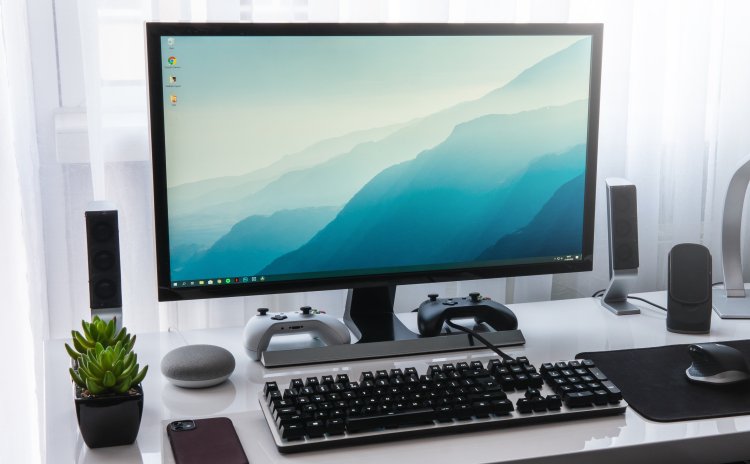
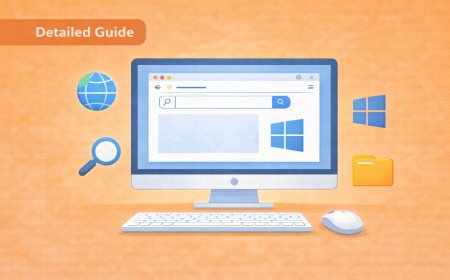
While Windows and Macs have similar home screen setups, there are some noticeable differences. The areas we’ll look at on the Windows home screen are the desktop, the start button, the start menu, the taskbar, the system tray, the search bar, and the icons.
The desktop is the central area of the home screen. Like an actual desktop, it’s where all of the information is laid out all at once for quick and easy reference. You should keep any important documents or programs you frequently use on the desktop to make them easier to find and use.
You’ll find icons on the desktop. Icons are little pictures representing different programs and applications. They are used as gateways to start programs or open documents. For example, double-clicking on the Zoom icon will launch the Zoom program.
Using the mouse, icons can be rearranged on the desktop or grouped in folders for easier management.
The start button is found in the bottom left corner of the desktop and looks like the Windows logo. It is used to open the start menu.
The start menu contains all the installed programs on the computer. It also allows you to access the settings of the computer, as well as turn off or restart the computer. Whenever you install a new program, it will automatically appear in the start menu.
The taskbar runs along the bottom of your desktop, between the start button and the system tray. The taskbar shows all of the currently running programs or applications. Simply clicking on the different running applications will allow you to switch between them.
The taskbar also allows you to pin applications for quick and easy access. Applications that are pinned remain in the taskbar and can be opened with the click of a button.
On Windows 10 machines, the taskbar also contains the search bar. As the name implies, the search bar allows you to search for any applications or documents within your computer simply by typing the name into it.
The system tray appears in the bottom right of your home screen. It contains essential system information such as the time and date, battery level, internet status, and volume level.
Now you know the basics of navigating a Windows desktop. The next lesson will go over the basics of navigating a Mac desktop.
This is Part 6 of a 7-Part series. You will get the most benefit out of this series if you watch the videos in order.
Part 3 - Basics of a Chromebook
Part 4 - Common Computer Accessories
Part 6 - Navigating the Windows Homescreen
Part 7 - Navigating the Mac Homescreen
.
Return to the Introduction to the Computer Basics Video Lessons:
Become Computer-Savvy (Video Lessons Intro)
.
Return to the CyberSmarts for Seniors Introduction:
CyberSmarts for Seniors: Practical Lessons to Build Digital Confidence and Safety

This resource is part of the CyberSmarts for Seniors Project, funded in part by the Government of Canada’s
New Horizons for Seniors Program and ELNOS, and delivered in Elliot Lake by Raknas Inc. and Golden Voices, the seniors-focused division of the DiversityCanada Foundation.
,
,