CyberSmarts for Seniors: Detailed Guide to Setting Up Your Government Accounts
 Admin
Admin 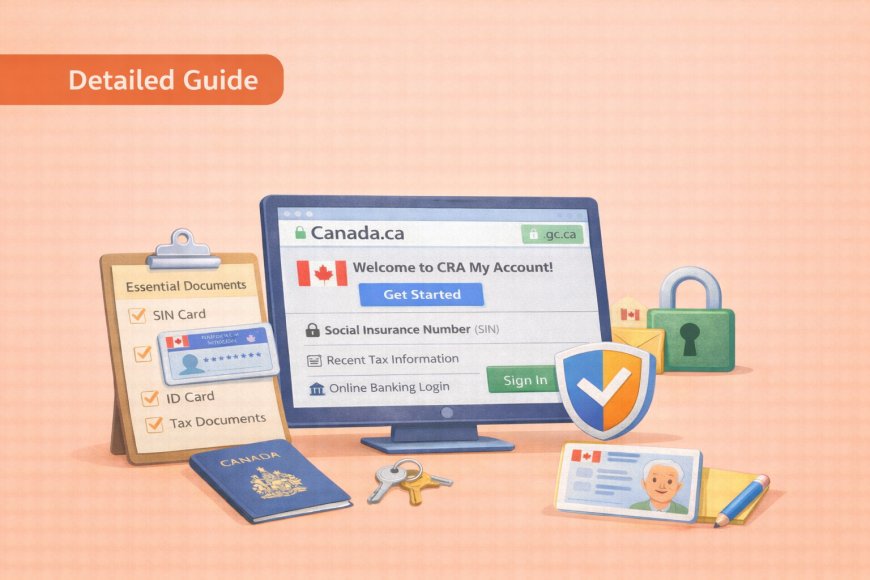
Setting up government accounts online might sound complicated, but thousands of Canadians do it every day — and you can too. These accounts give you secure, convenient access to important services like tax information, employment insurance, and health records, all from the comfort of your home. This guide walks you through each step at a comfortable pace, so there's no need to rush or worry about making mistakes.
(A quick guide with the key points from this resource can also be downloaded as a PDF so you can read it anytime, even if you are offline. Click here to download your copy.)
Before You Start: What You'll Need
A little preparation goes a long way toward making your account setup smooth and stress-free. Knowing exactly which documents to have on hand before you begin means you won't have to stop partway through to search for something — which can sometimes cause the registration to time out. Take a few minutes to gather everything listed below, and you'll be ready to move through the process with confidence.

Essential Documents Checklist
Before setting up any government account, gather these documents:
✓ For My Service Canada Account:
-
ONE document from Category 1: Canadian passport, driver's license, provincial ID, or Permanent Resident Card
-
ONE document from Category 2: Birth certificate, citizenship certificate, or immigration document with photo
-
Your Social Insurance Number (SIN) card
-
Recent utility bill or bank statement for address proof
✓ For CRA My Account:
-
Your Social Insurance Number (SIN)
-
Your most recent tax return (Notice of Assessment)
-
Current address and postal code
-
Online banking login (if using fastest registration method)
✓ For My Service Ontario Account:
-
Ontario driver's license OR Ontario Photo Card
-
Ontario health card (red and white card)
-
Current postal code

Setting Up Your Workspace
-
Find a quiet, private space where you won't be interrupted
-
Use a secure internet connection (your home Wi-Fi, not public Wi-Fi)
-
Have paper and pen ready to write down important information
-
Plan for 30-45 minutes for each account setup
-
Close other browser tabs to avoid confusion

Setting Up Your My Service Canada Account
Your My Service Canada Account is your personal gateway to federal benefits like Employment Insurance, Canada Pension Plan, and Old Age Security — all in one place. Whether you prefer to register from home using your online banking or would rather visit an office in person, there's a method that works for you. The steps below cover both options clearly, so you can choose whichever feels most comfortable.
Method 1: Online Registration
Step 1: Getting to the Right Website
-
Open your internet browser (Chrome, Firefox, Safari, or Edge)
-
Type exactly: canada.ca in the address bar
-
Press Enter on your keyboard
-
Look for the search box at the top of the page
-
Type: "My Service Canada Account"
-
Press Enter or click the search button (magnifying glass icon)
-
Click on the first result that says "My Service Canada Account - Canada.ca"

Step 2: Starting Your Registration
-
Look for a button that says "Register" or "Sign up"
-
Click the "Register" button
-
You'll see three options:
-
Register using online banking (fastest)
-
Register in person
-
Register by mail
-
Choose "Register using online banking" for the quickest process
Step 3: Online Banking Verification
-
Select your bank from the dropdown menu:
-
Royal Bank of Canada (RBC)
-
TD Bank
-
Scotiabank
-
Bank of Montreal (BMO)
-
CIBC
-
National Bank
-
Desjardins
-
Other participating banks
-
Click "Continue"
-
You'll be redirected to your bank's website
-
Log in using your normal online banking username and password
-
Follow the prompts to verify your identity
-
You'll be sent back to the Service Canada website

Step 4: Creating Your Account Details
-
Enter your personal information exactly as it appears on your documents:
-
Full legal name (first name, middle name if you have one, last name)
-
Date of birth (DD/MM/YYYY format - for example: 15/03/1955)
-
Social Insurance Number (9 digits, no spaces or dashes)
-
Current address (street number, street name, apartment number if applicable)
-
City, province, postal code
-
Phone number (include area code)
-
Email address
-
Double-check everything before clicking "Continue"

Step 5: Address History
-
You'll need to provide your address history for the past 5 years
-
Start with your current address, then work backwards
-
For each address, include:
-
Full street address
-
City and province
-
Postal code
-
Dates you lived there (from/to)
-
If you can't remember exact dates, approximate as closely as possible
Step 6: Employment History
-
List your employment for the last 10 years
-
For each job, include:
-
Employer name
-
Job title
-
Start and end dates (month/year is fine)
-
Employer's address
-
If you were self-employed, write "Self-employed" as the employer
-
If you were retired, write "Retired" and include the date
Step 7: Setting Up Security Questions
-
Choose 3 security questions from the dropdown menus
-
Pick questions you'll remember years from now, such as:
-
"What was the name of your first pet?"
-
"What was the make of your first car?"
-
"What is your mother's maiden name?"
-
Write specific answers, not generic ones
-
Example: Instead of "dog" write "Rover" or "Golden Retriever named Rover"
-
Write down your questions and answers on paper and store them safely

Step 8: Creating Your Login Credentials
-
Choose a username (6-20 characters, can include letters and numbers)
-
Create a strong password that includes:
-
At least 8 characters
-
One uppercase letter
-
One lowercase letter
-
One number
-
One special character (!@#$%^&*)
-
Write down your username and password and store them safely
-
Re-enter your password to confirm

Step 9: Final Steps
-
Review all your information carefully
-
Check the box to agree to the terms and conditions (read them if you have time)
-
Click "Submit" or "Create Account"
-
You should see a confirmation message saying your account has been created
-
Check your email for a confirmation message from Service Canada
Method 2: In-Person Registration
Step 1: Find Your Local Service Canada Office
-
Go to: servicecanada.gc.ca
-
Look for "Office Locator" or "Find an Office"
-
Enter your postal code or city name
-
Choose the closest office and note the address and hours
Step 2: Prepare Your Visit
-
Gather your required documents:
-
One primary ID (passport, driver's license, provincial ID, or PR card)
-
One supporting ID (birth certificate, citizenship certificate, or immigration document)
-
Social Insurance Number card
-
Proof of current address
-
Bring a pen and something to write on
-
Plan for 30-45 minutes at the office
Step 3: At the Service Canada Office
-
Take a number from the ticket dispenser when you enter
-
Wait for your number to be called
-
Tell the agent "I'd like to register for a My Service Canada Account"
-
Show your documents when requested
-
The agent will help you fill out the registration form
-
Answer questions about your identity and background
-
Choose your security questions with the agent's help
-
Create your username and password
-
Get a temporary password to access your account immediately

Setting Up Your CRA My Account
Your CRA My Account lets you view your tax returns, check benefit payments, and update your personal information directly with the Canada Revenue Agency — no more waiting on hold or mailing forms. There are three ways to register, ranging from a quick 10-minute online process to an in-person visit if you'd prefer face-to-face help. Pick the option that suits you best and follow the steps at your own pace.
Method 1: Online Banking Verification (Fastest - 10 minutes)
Step 1: Getting to the CRA Website
-
Open your internet browser
-
Type exactly: canada.ca/cra-arc in the address bar
-
Press Enter
-
Look for "My Account" in the menu or main page
-
Click "My Account"
-
Click "Register" or "Sign up"
Step 2: Choosing Your Registration Method
-
You'll see several options:
-
Register online using your online banking credentials (recommended)
-
Register by phone
-
Register in person
-
Click "Register online using your online banking credentials"
Step 3: Bank Selection and Verification
-
Select your bank from the list:
-
RBC Royal Bank
-
TD Canada Trust
-
Scotiabank
-
Bank of Montreal
-
CIBC
-
National Bank of Canada
-
Desjardins
-
Click "Continue"
-
You'll be redirected to your bank's login page
-
Enter your banking username and password (the same ones you use for online banking)
-
Complete any additional security steps your bank requires
-
Authorize the CRA to verify your identity through your bank
Step 4: Creating Your CRA Login
-
After bank verification, you'll return to the CRA website
-
The system will confirm your identity has been verified
-
Choose a CRA username (6-20 characters)
-
Create a strong password following these rules:
-
At least 8 characters long
-
One uppercase letter
-
One lowercase letter
-
One number
-
One special character
-
Confirm your password by typing it again
-
Write down your username and password and store them safely
Step 5: Account Confirmation
-
You should see a success message saying your account is ready
-
Click "Continue to My Account" or "Log In"
-
Enter your new username and password to test your account
-
You should now see your tax information and account dashboard
Method 2: Registration by Phone (5-10 business days)
Step 1: Calling the CRA
-
Call: 1-800-959-8281
-
Have ready:
-
Your Social Insurance Number
-
Your full legal name
-
Your date of birth
-
Your current address
-
Information from your most recent tax return
-
Call during business hours: Monday to Friday, 9 AM to 5 PM (your local time)
Step 2: Identity Verification Over the Phone
-
Tell the agent, "I'd like to register for CRA My Account"
-
Answer questions to verify your identity:
-
Provide your SIN
-
Confirm your full name and date of birth
-
Verify your current address
-
Answer questions about your recent tax returns
-
The agent will confirm your eligibility for online access
Step 3: Receiving Your Security Code
-
The agent will tell you a security code will be mailed to your address
-
Ask how long it will take (usually 5-10 business days)
-
Confirm your mailing address is correct
-
Write down the reference number the agent gives you
Step 4: Completing Online Registration
-
When you receive the letter with your security code:
-
Go to: canada.ca/cra-arc
-
Click "My Account" then "Complete Registration"
-
Enter the security code from your letter
-
Follow the steps to create your username and password
-
Your account will be activated immediately
Method 3: In-Person Registration (Immediate access)
Step 1: Find a CRA Tax Services Office
-
Go to: canada.ca/cra-arc
-
Click "Contact the CRA" or "Find an Office"
-
Look for "Tax Services Offices"
-
Enter your postal code to find the nearest location
-
Note the address and hours
Step 2: Prepare for Your Visit
-
Bring two pieces of ID:
-
One must have your photo (driver's license, passport, provincial ID)
-
The second piece can be a health card, a SIN card, or a credit card
-
Bring your most recent tax return or Notice of Assessment
-
Plan for 20-30 minutes at the office
Step 3: At the CRA Office
-
Show your identification when requested
-
The agent will verify your identity and tax information
-
Complete the registration form with the agent's help
-
Create your username and password
-
Get a temporary password to access your account right away
Setting Up Your My Service Ontario Account
Your My Service Ontario Account makes it easy to renew your health card, driver's licence, and other documents online — saving you a trip to a ServiceOntario location. You'll need a couple of pieces of provincial ID to get started, but the process is straightforward whether you do it online or in person. The steps below will guide you through everything clearly, one screen at a time.
 Online Registration Method
Step 1: Getting to the Service Ontario Website
-
Open your web browser
-
Type exactly: services.ontario.ca in the address bar
-
Press Enter
-
Look for "Sign In" or "Create Account" on the page
-
Click "Create One-key account" or "Sign up"
Step 2: Choosing Your Verification Method
-
You'll see options for account creation:
-
Verify with Ontario driver's licence (recommended)
-
Verify with Ontario Photo Card
-
Register in person
-
Choose "Verify with Ontario driver's licence" (most common option)
Step 3: Driver's Licence Verification
-
Get your Ontario driver's licence ready
-
Enter the information exactly as it appears on your licence:
-
Driver's licence number (usually starts with a letter)
-
Date of birth (DD/MM/YYYY format)
-
Postal code on file with ServiceOntario
-
Double-check all information before clicking "Continue"
Step 4: Health Card Information
-
Get your Ontario health card (the red and white card)
-
Enter your health card number (the long number on the front)
-
Enter your version code (the two-letter code after your health card number)
-
Click "Continue"
Step 5: Creating Your Login Credentials
-
Choose a username (must be unique - if taken, try adding numbers)
-
Create a strong password with:
-
At least 8 characters
-
One uppercase letter
-
One lowercase letter
-
One number
-
One special character
-
Confirm your password by typing it again
Step 6: Security Questions Setup
-
Choose security questions from the dropdown menus
-
Select questions you'll remember years from now
-
Provide specific answers that only you would know
-
Write down your security questions and answers and store them safely
Step 7: Contact Information
-
Provide your email address (you'll need to verify this)
-
Enter your phone number (include area code)
-
Choose your communication preferences:
-
Email notifications for renewals
-
Text message reminders
-
Mail notifications (traditional letters)
Step 8: Email Verification
-
Check your email for a verification message from ServiceOntario
-
Click the verification link in the email
-
This will activate your account
-
Return to the ServiceOntario website and log in with your new credentials
In-Person Registration Method
Step 1: Find Your ServiceOntario Centre
-
Go to: ontario.ca/page/serviceontario
-
Click "Find a ServiceOntario location"
-
Enter your postal code or city name
-
Choose the most convenient location
-
Check the hours (some locations have extended hours)
Step 2: Prepare Your Documents
-
Bring your Ontario driver's licence OR Ontario Photo Card
-
Bring your Ontario health card (red and white card)
-
Have your email address ready to provide
-
Bring a pen and something to write on
Step 3: At the ServiceOntario Centre
-
Show your driver's licence/Photo Card and health card
-
The staff will help you complete the registration
-
Create your username and password with their assistance
-
Set up your security questions
-
Provide your contact information
-
Get your login credentials to use immediately
Account Recovery: When Things Go Wrong
Getting locked out of an account or forgetting a password happens to everyone. It's one of the most common tech frustrations people of all ages experience. The good news is that every government account has a clear recovery process, and in most cases, you can regain access in just a few minutes. The steps below cover every likely scenario, from a forgotten password to a fully locked account, so you'll know exactly what to do no matter what comes up.
My Service Canada Account Recovery

Recovering your My Service Canada Account is simpler than it might feel in the moment of frustration. Whether you've forgotten your password, your username, or find yourself locked out after too many attempts, there's a reliable path back in, either online or with a quick phone call. Work through the scenario below that matches your situation, and you'll be back on track shortly.
If You Forgot Your Password
Step 1: Go to the Login Page
-
Visit: servicecanada.gc.ca
-
Click "Sign In"
-
Look for "Forgot your password?" (usually a small link below the login boxes)
-
Click "Forgot your password?"
Step 2: Enter Your Information
-
Type your username OR your email address (either one works)
-
Click "Submit" or "Continue"
Step 3: Answer Security Questions
-
You'll see your security questions (the ones you set up during registration)
-
Type the answers exactly as you entered them during setup
-
Click "Submit"
Step 4: Create Your New Password
-
If your answers are correct, you'll see a password reset page
-
Create a new, strong password following the requirements shown
-
Type the new password twice to confirm it
-
Write down your new password and store it safely
-
Click "Submit"
-
Try logging in with your username and new password
If You Forgot Your Username
Step 1: Username Recovery
-
Go to: servicecanada.gc.ca
-
Click "Sign In"
-
Click "Forgot your username?"
Step 2: Provide Your Information
-
Enter your email address (the one registered to your account)
-
Enter your Social Insurance Number
-
Click "Submit"
Step 3: Answer Security Questions
-
Answer your security questions correctly
-
Your username will be displayed on the screen
-
Write it down and store it safely
-
Your username will also be emailed to your registered email address
If You're Locked Out (Too Many Failed Login Attempts)
Option 1: Wait It Out
-
Your account automatically unlocks after 24 hours
-
Don't try to log in during this waiting period
-
After 24 hours, try logging in again with the correct credentials
Option 2: Call for Immediate Help
-
Call Service Canada: 1-800-206-7218
-
Tell them: "My account is locked and I need it unlocked."
-
Be ready to verify your identity with:
-
Full name and Social Insurance Number
-
Date of birth
-
Current address
-
Information from recent Service Canada correspondence
-
The agent can unlock your account immediately over the phone
If You Forgot Your Security Question Answers
Call Service Canada for Help
-
Call: 1-800-206-7218
-
Explain: "I forgot my security question answers and need to reset them."
-
Verify your identity with personal information
-
The agent will reset your security questions
-
Choose new questions you'll definitely remember
-
Write down the new questions and answers, and store them safely
CRA My Account Recovery
The CRA offers several ways to recover your account, so even if one method doesn't work for you, another one will. In many cases, the same online banking login you already trust can get you back in quickly without needing to remember anything extra. Find the situation that applies to you below and follow the steps. Help is closer than you think.
If You Forgot Your Password
Method 1: Online Banking Reset (Fastest)
-
Go to: canada.ca/cra-arc
-
Click "My Account"
-
Click "Sign In"
-
Click "Forgot your password?"
-
Choose "Reset using online banking"
-
Select your bank and log in with your banking credentials
-
Follow the prompts to create a new password
Method 2: Security Questions
-
Follow steps 1-4 above
-
Choose "Answer security questions" (if you set these up)
-
Answer your questions correctly
-
Create a new password
Method 3: Call the CRA
-
Call: 1-800-959-8281
-
Tell them: "I forgot my password and need to reset it"
-
Verify your identity over the phone
-
They'll help you reset your password
If You Forgot Your User ID
Step 1: User ID Recovery Page
-
Go to: canada.ca/cra-arc
-
Click "My Account" then "Sign In"
-
Click "Forgot your user ID?"
Step 2: Enter Your Information
-
Enter your Social Insurance Number
-
Enter your postal code (the one on file with CRA)
-
Click "Continue"
Step 3: Verification
-
Choose your verification method:
-
Answer security questions
-
Verify through online banking
-
Complete the verification process
-
Your user ID will be displayed and emailed to you
If You're Locked Out
Automatic Unlock
-
CRA accounts lock after 5 failed login attempts
-
Wait 24 hours for automatic unlock
-
Don't attempt to log in during the waiting period
Immediate Help
-
Call CRA: 1-800-959-8281
-
Verify your identity with:
-
Social Insurance Number
-
Full name and date of birth
-
Current address
-
Information from recent tax return
-
The agent can unlock your account immediately
Complete Account Recovery (Worst-Case Scenario)
If you've tried the self-serve recovery options and still can't get in, don't worry — this is exactly what government service offices are there for. Visiting in person with your identification is a reliable last resort that works every time, and the staff is experienced at helping people through this process. The steps below describe what to bring and what to expect so you can walk in feeling prepared.
If Nothing Else Works
For Service Canada Accounts
-
Visit a Service Canada office with photo ID
-
Bring a second piece of ID for extra verification
-
Explain your situation to the staff
-
They'll verify your identity and reset your account completely
-
Create new login credentials on the spot
For CRA Accounts
-
Visit a CRA Tax Services office with two pieces of ID
-
Ask for Form RC473 "Request for a New Access Code"
-
Complete the form with staff assistance
-
Get immediate temporary access to your account
-
Set up new permanent login credentials
Staying Safe: Recognizing and Avoiding Scams
Unfortunately, scammers often target people who are newer to online government services, which makes it especially important to know what legitimate communications actually look like. The reassuring truth is that real government agencies follow predictable, respectful patterns — and once you know the warning signs, fraudulent messages become surprisingly easy to spot. This section will help you recognize the red flags, verify anything that feels suspicious, and know exactly what to do if something ever goes wrong.

Common Government Scam Warning Signs
Scam messages are designed to make you feel alarmed and rush you into acting before you've had a chance to think clearly. Knowing what to look for ahead of time takes away much of their power because a warning sign you recognize is one you can simply ignore and report. The examples below show the most common tricks scammers use, whether they reach you by email, phone, or text.
Phishing Email Red Flags
What to Look For:
-
Generic greetings like "Dear Citizen" or "Dear Sir/Madam" instead of your name
-
Urgent language like "Act immediately" or "Your account will be closed"
-
Spelling and grammar mistakes in official-looking emails
-
Suspicious email addresses that don't end in .gc.ca
-
Requests for personal information via email
Example of a Scam Email:
Subject: URGENT - Your CRA Account Suspended
Dear Taxpayer,
Your account has been suspended due to suspicious activity.
Click here immediately to verify your information or face
legal consequences: www.cra-verification.net
Regards,
CRA Security Team
What's Wrong Here:
-
Generic greeting ("Dear Taxpayer")
-
Creates false urgency
-
Suspicious website (not ending in .gc.ca)
-
Threatening language
-
Asks you to click a link
Phone Scam Warning Signs
Red Flags During Phone Calls:
-
Caller demands immediate payment using gift cards, wire transfers, or cryptocurrency
-
Threatens arrest or legal action if you don't pay right away
-
Asks for your SIN, banking information, or passwords over the phone
-
Pressures you to stay on the line or not hang up
-
Caller ID shows a government number but the caller's behavior seems suspicious
Text Message Scam Examples
Common Scam Text Messages:
-
"Your GST refund is ready. Click here to claim: [suspicious link]"
-
"CRA: Update your banking info to receive your refund: [fake website]"
-
"Service Canada: Your benefits are suspended. Verify here: [scam link]"
How to Verify If a Communication is Legitimate
When something arrives in your inbox or on your phone that claims to be from the government, it's always okay to pause and check before doing anything else. The most reliable habit you can build is going directly to official websites rather than clicking any links provided to you. The simple verification steps below will quickly tell you whether a message is real and what to do either way.
The Golden Rule: When in Doubt, Don't Click or Call Back
Instead, Do This:
-
Go directly to the official website by typing the URL yourself
-
Use official phone numbers from canada.ca
-
Check your online accounts by logging in directly
-
Visit an office in person if you're still unsure
Step-by-Step Verification Process
Step 1: Don't React Immediately
-
Take a deep breath
-
Don't click any links in emails or texts
-
Don't call phone numbers provided in suspicious communications
-
Don't provide personal information
Step 2: Verify Through Official Channels
-
Type the official website directly into your browser (canada.ca)
-
Log into your government accounts directly to check for real messages
-
Call official numbers you can find on canada.ca
Step 3: Ask for Help
-
Contact a trusted family member or friend
-
Visit a community center that helps seniors with technology
-
Call your local Service Canada office during business hours
Examples: Real vs. Fake Communications
Legitimate Government Communication
Dear John Smith,
Your Employment Insurance claim (Reference #EI-12345678)
has been processed. Your payment of $573.00 will be
deposited to your bank account on March 15, 2024.
To view detailed payment information, please log into
your My Service Canada Account at servicecanada.gc.ca.
If you have questions about your claim, please call
1-800-206-7218 during business hours.
Service Canada
Why This is Legitimate:
-
Uses your actual name
-
Provides specific reference numbers
-
Directs you to official website
-
Uses official phone number
-
No urgent demands or threats
Scam Communication Example
URGENT NOTICE - CRA
Your account has been flagged for suspicious activity.
Failure to verify your information within 24 hours will
result in account suspension and possible legal action.
Click here to verify immediately: www.cra-urgent-verify.com
For immediate assistance, call 1-855-XXX-XXXX
Red Flags:
-
Creates false urgency (24 hours)
-
Uses threatening language
-
Suspicious website (not .gc.ca)
-
Non-official phone number
-
Generic messaging
What to Do If You Think You've Been Scammed
If you suspect you've fallen for a scam, the most important thing to know is that acting quickly makes a real difference. There's no shame in reaching out for help. Scammers are skilled at what they do, and even careful, experienced people are sometimes caught off guard. Follow the steps below based on what happened, and know that the right support is available to you.
If You Clicked a Suspicious Link
-
Close your browser immediately
-
Run a virus scan on your computer
-
Change your government account passwords by going directly to official websites
-
Monitor your bank accounts for unusual activity
-
Contact your bank if you see suspicious transactions
If You Gave Out Personal Information
-
Contact the Canadian Anti-Fraud Centre at 1-888-495-8501
-
Call your bank immediately to report potential fraud
-
Change all your government account passwords
-
Monitor your credit report for new accounts you didn't open
-
File a police report if money was stolen
How to Report Scams
Canadian Anti-Fraud Centre:
-
Phone: 1-888-495-8501
-
Email: info@antifraudcentre.ca
-
Website: antifraudcentre.ca
What Information to Provide:
-
Details about the scam attempt
-
Phone numbers or email addresses used by scammers
-
Any financial losses
-
Screenshots of fake websites or emails
Security Best Practices
Once your accounts are set up, a few simple habits will keep them secure for years to come. Think of this section as the maintenance guide for your digital life; small, regular actions that protect your personal information without requiring any technical expertise. The practices below are straightforward to follow and make a genuine difference in keeping scammers out.
Multi-Factor Authentication (MFA): Your Digital Bodyguard

What is Multi-Factor Authentication?
Multi-factor authentication sounds technical, but the idea behind it is simple and very effective. It adds one extra step when you log in — usually a short code sent to your phone — which means that even if someone somehow learned your password, they still couldn't access your account. Setting it up takes just a few minutes, and the peace of mind it provides is well worth it.
Simple Explanation: Multi-Factor Authentication is like having two locks on your door instead of one. Even if someone steals your password (first lock), they still can't get into your account without the second lock (a code sent to your phone).
How to Set Up MFA on Government Accounts
For CRA My Account:
-
Log into your CRA account
-
Click "Account Settings" or "Security Settings"
-
Look for "Multi-Factor Authentication" or "Two-Factor Authentication"
-
Choose your preferred method:
-
Text message to your phone (most common)
-
Phone call to your number
-
Authenticator app (more advanced)
-
Follow the setup instructions
-
Test it by logging out and logging back in
For Service Canada Account:
-
Log into your account
-
Go to "Profile Settings" or "Security"
-
Enable "Two-Step Verification"
-
Choose text message or phone call
-
Enter your phone number
-
Verify the setup with a test code
Best Practices for MFA
-
Keep your phone number updated in all your accounts
-
Save backup codes in a safe place (not on your computer)
-
Never share MFA codes with anyone, even if they claim to be from the government
-
If you change phone numbers, update your accounts immediately
Account Maintenance: Keeping Your Digital Life Healthy
Keeping your government accounts in good shape doesn't require much time; just a small amount of regular attention, the way you might check your smoke detector or review a bank statement. Staying on top of a few key details, like keeping your contact information current, means you're far less likely to run into problems down the road. The simple routine below will help you stay ahead of any issues before they become headaches.
Monthly Security Checkup (15 minutes)
First Monday of Every Month:
-
Log in to each government account to check for unusual activity
-
Review any new messages or notifications
-
Check that your contact information is still current
-
Look for any login attempts you don't remember making
-
Update your password if it's been more than 6 months

Keeping Contact Information Current
When to Update Your Information:
-
You move to a new address
-
You change phone numbers
-
You get a new email address
-
Your banking information changes
How to Update Information:
-
Log in to your account
-
Click "My Profile" or "Personal Information"
-
Update the changed information
-
Save your changes
-
You may need to verify the new information
Quick Reference Guide
This final section brings together the most important websites, phone numbers, and tips from the entire guide so you always have them in one easy-to-find place. Consider bookmarking this page, printing it out, or keeping a handwritten copy near your computer for whenever you need a quick reminder. Everything here has been chosen because it's genuinely useful — no clutter, just the essentials.
Essential Websites (Type These Exactly)
Main Government Portal:
-
canada.ca - Start here for all federal government services
Specific Service Websites:
-
servicecanada.gc.ca - Employment Insurance, CPP, OAS
-
canada.ca/cra-arc - Taxes, benefits, GST/HST credits
-
ontario.ca - Ontario-specific services (for Ontario residents)
-
services.ontario.ca - Driver's licenses, health cards, etc.

Important Phone Numbers (Save in Your Phone)
Federal Government Services:
-
Service Canada General: 1-800-206-7218
-
Canada Revenue Agency: 1-800-959-8281
-
Government of Canada Info: 1-800-622-6232
Ontario Provincial Services:
-
ServiceOntario: 1-800-267-8097
-
Ontario Health (OHIP): 1-800-268-1154
Emergency and Fraud Reporting:
-
Canadian Anti-Fraud Centre: 1-888-495-8501
-
Local Police: 911 (for immediate emergencies)
Best Times to Call:
-
Tuesday to Thursday: 10 AM - 2 PM (less busy)
-
Avoid Mondays and Fridays (busiest days)
-
Have your information ready before calling
Remember: You're not alone in learning these digital skills. Take it one step at a time, and don't hesitate to ask for help when you need it. Every senior who successfully uses government services online started exactly where you are now.
.
Return to the CyberSmarts for Seniors Introduction:
CyberSmarts for Seniors: Practical Lessons to Build Digital Confidence and Safety
.
.

This resource is part of the CyberSmarts for Seniors Project, funded in part by the Government of Canada’s
New Horizons for Seniors Program and ELNOS, and delivered in Elliot Lake by Raknas Inc. and Golden Voices, the seniors-focused division of the DiversityCanada Foundation.
.
Download PDF
How to download a quick guide with the key points of this article as a PDF:
—Click the File Name below (in blue).
— If your device is set up to download automatically, the file you just clicked will be saved where your downloaded items can be found (usually in your Downloads folder or Desktop).
—If your device is not set up to download automatically, a dialogue box should pop up.
—Click Save.
—According to your device settings, the file may now be saved where your downloaded items can be found (usually in your Downloads folder or Desktop).
—Alternatively, your device may show you a window, and you will have the chance to choose a location where you want to save the file. Choose a place that's easy to find, like Downloads, Documents, or Desktop.
—The PDF will be downloaded to your device.
—You can now open it anytime in the future, even without an Internet connection.